
CC Switch for beginners: install, configure and switch providers
CC Switch puts provider settings for AI tools in a desktop interface. Learn to distinguish the client, model and provider, configure an API service, verify a real request, inspect usage and restore your previous settings.
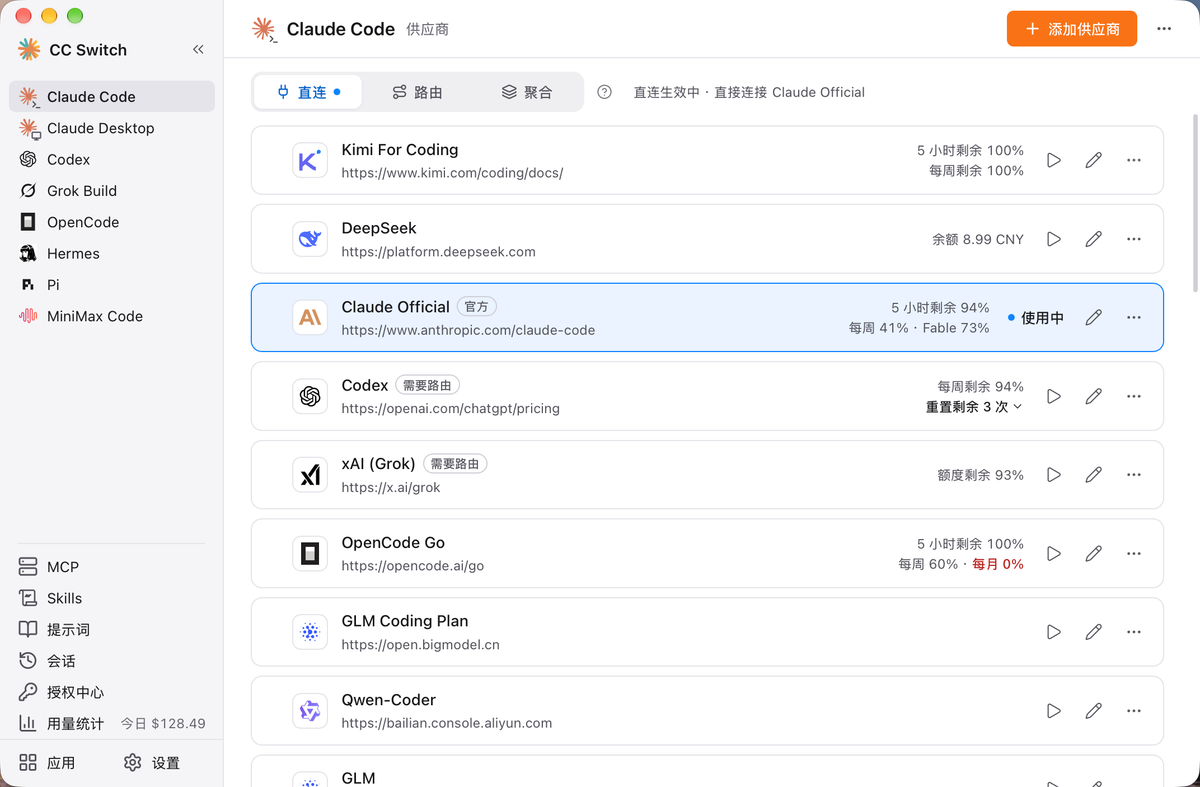
1. Understand the tool and the goal
The goal: install CC Switch, add one provider, receive a successful response and switch back to your original configuration.
CC Switch is desktop software for managing AI-tool configurations. You submit tasks in Claude Code or Codex; CC Switch manages which service they connect to. It does not provide a model usage allowance.
| Term in the form | Meaning |
|---|---|
| Provider | The party providing access to model APIs |
| API Key | A key for using that service, not a sign-in password |
| API endpoint | Where the software sends requests; not necessarily the website homepage |
| Model ID | A model name recognized by the provider's API |
This guide was checked on October 22, 2026, when the stable release was v4.0.18.
2. Download and install
1. Download the installer for your computer
Open the official download page and choose your system:
| Computer | Download | Installation |
|---|---|---|
| Windows 10+ | x64 or ARM64 MSI | Double-click and complete the wizard |
| macOS 12+ | Universal DMG | Open it and drag the app to Applications |
| Linux | deb/rpm/AppImage for your distribution | Follow the official installation instructions |
On Windows, check the architecture in Settings → System → About. Linux requires glibc 2.35+ and WebKitGTK 4.1. Do not download the Source code archive as an installer.
Success check: opening the app from the Start menu or Applications shows the CC Switch window.
2. Optional: have an agent install it
If you have an agent that can operate your computer, copy this request:
Identify my operating system and architecture, then install the latest stable desktop release using the official instructions at https://github.com/farion1231/cc-switch. Preserve existing settings and do not install the community CLI. Leave administrator permission to me. Report the installed version and how to open it.
A normal browser chat may not have local installation capabilities. On a Mac with Homebrew already installed, you can also run this in Terminal:
brew install --cask cc-switch
3. Check the AI tool you want to manage
- Select Apps in the bottom-left corner.
- Find Claude Code or Codex. Install it if missing, or check its version if it is already installed.
- Choose just one tool for this exercise.
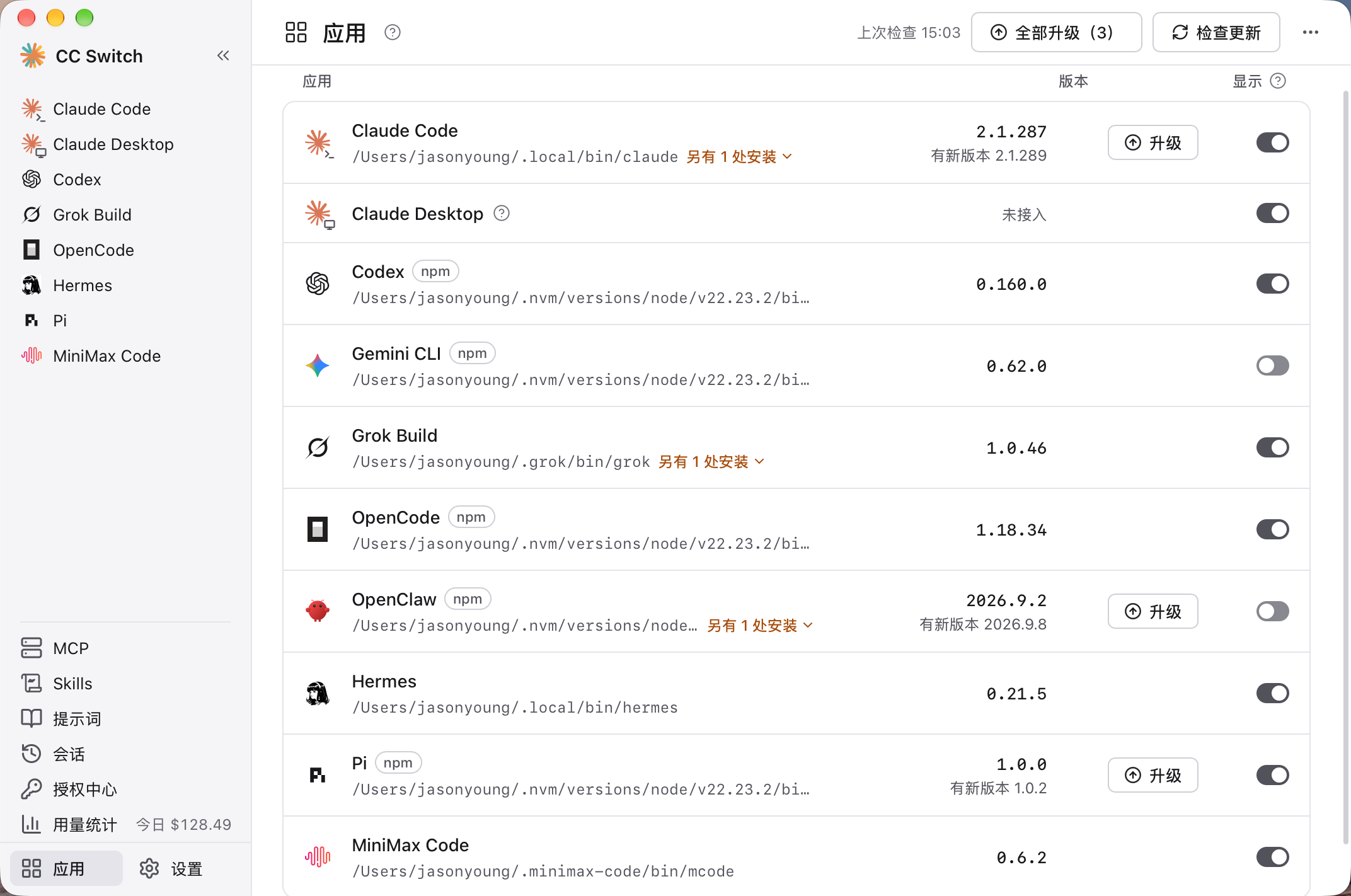
Look at the version and button on the right of each row.
Success check: the selected tool can start independently. Installing CC Switch does not also mean that the client is installed.
This guide uses tools running directly on your computer. If your client runs inside Windows Subsystem for Linux (WSL), its configuration directories and network differ; follow the official WSL instructions separately.
3. First use: add, enable and verify
4. Check the client's official sign-in route first
CC Switch manages connection settings. Sign in to model accounts in the corresponding client:
- Claude Code: run
claudein a terminal, follow the official-account sign-in instructions and check/status. - Codex: run
codex, choose Sign in with ChatGPT, complete browser authorization and return to the terminal. - If you already have a working configuration, send a short message to confirm it works before making the backup below. Account access is whatever your account page specifies.
Success check: the client itself works. Next, use Orbis as an example of adding an API service and switching back.
5. Back up, then open Add provider
- For an existing setup, open Settings → Data, export an SQL backup and preserve the client's original configuration.
- Select Claude Code on the left and Direct at the top.
- Select Add provider in the top-right corner.
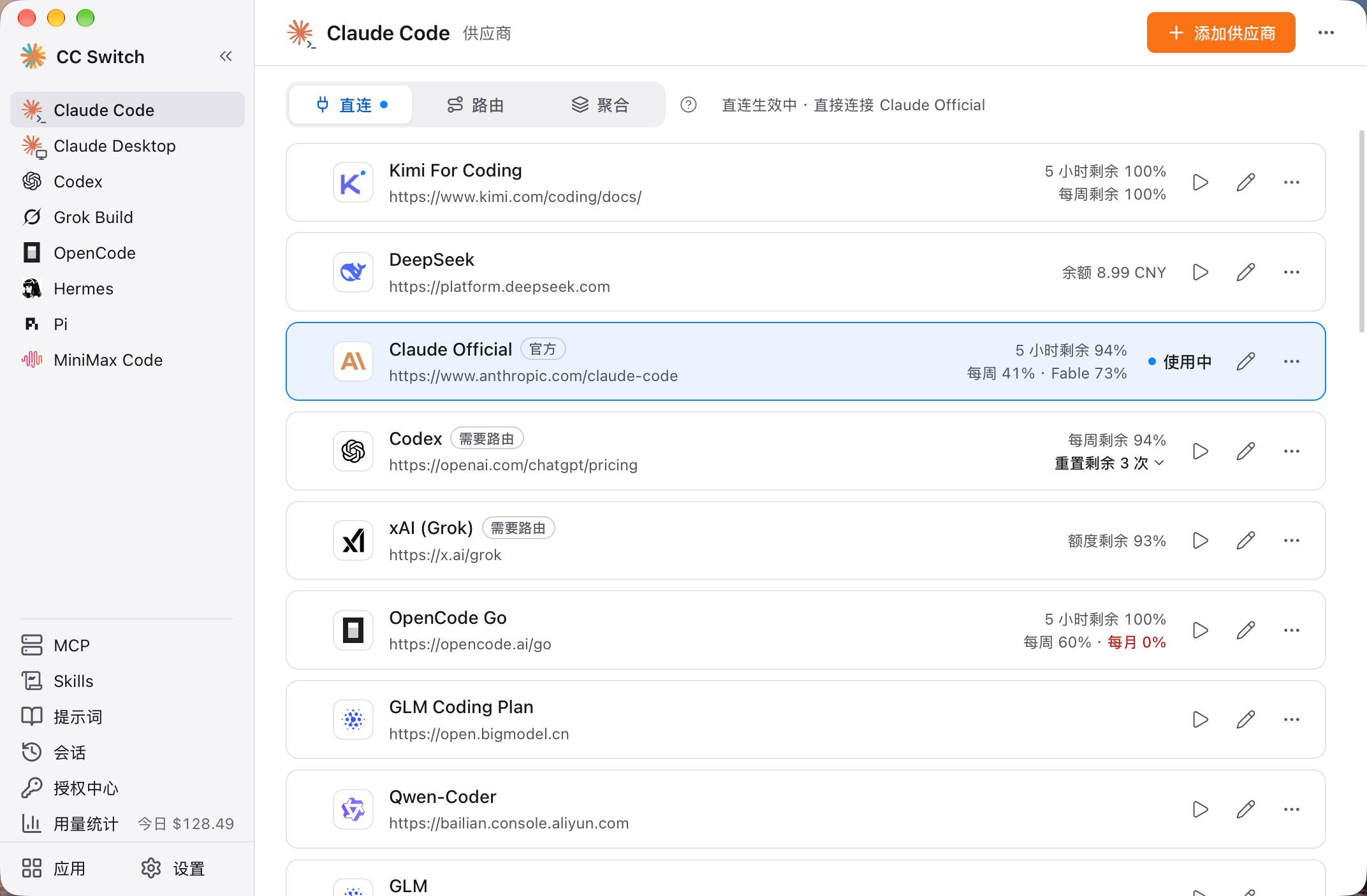
Check which client is selected on the left, then find Add in the top-right corner. The card marked In use is the current provider.
Success check: the add-provider page names the client you intend to configure. Codex users should add the provider from the Codex section.
6. Import from Orbis or enter the settings manually
Use the Orbis API for this exercise. Register or sign in at Orbis, open the relevant model page, choose a route and obtain an API key for that route. Keys are bound to routes; changing the model name does not automatically switch routes.
| Your tool | Model and route for this exercise | Endpoint and protocol |
|---|---|---|
| Claude Code | Claude Haiku 5.5, Claude Code · AH | https://api.orbiorbi.com; Anthropic Messages |
| Codex | GPT 6.1 Sol, GPT · HA | https://api.orbiorbi.com/v1; OpenAI Responses |
Recommended import: in the Orbis route details, open Quick integration → select a key → Tool integration → Claude Code or Codex CLI → Fill in CC Switch. Check the settings in CC Switch and confirm the import. The import link contains your key; do not share it. See the Orbis quick start for the steps.
If the import does not open the desktop app, return to Add provider → Custom configuration. Name it Orbis-Claude or Orbis-Codex. These are names you create, not built-in presets.
Manual Claude Code setup: choose Anthropic Messages as the upstream format and use the root endpoint in the table. If a JSON editor appears, set the following fields within the existing env object. Enter the key only on your computer:
{
  "ANTHROPIC_BASE_URL": "https://api.orbiorbi.com",
  "ANTHROPIC_AUTH_TOKEN": "YOUR_ORBIS_ROUTE_KEY",
  "ANTHROPIC_MODEL": "claude-haiku-5-5",
  "ANTHROPIC_DEFAULT_HAIKU_MODEL": "claude-haiku-5-5"
}
Manual Codex setup: choose OpenAI Responses as the upstream format. Enter the key in the provider editor's OPENAI_API_KEY field, use gpt-6.1-sol as the model and the /v1 endpoint from the table. If TOML is shown, model_provider must match the provider-table name, for example:
model_provider = "orbis"
model = "gpt-6.1-sol"
[model_providers.orbis]
name = "Orbis"
base_url = "https://api.orbiorbi.com/v1"
wire_api = "responses"
Keep Full URL off. These addresses are prefixes; do not append /messages or /responses. Both configurations match the native protocol, so you do not need routing for conversion. Change only the connection fields when saving; do not overwrite unrelated global settings.
Success check: the corresponding Orbis card appears, with the correct model ID and route. The settings are saved, but you have not switched to them yet.
7. Enable it and make a short request
- Select the switch button on the target card and confirm that it is marked In use.
- Claude Code usually picks up the change immediately. Restart Codex when prompted; fully quit and reopen the desktop app.
- Start a new client conversation and send:
Explain what a folder is in three sentences. Only answer; do not read or modify files.
Success check: you receive a complete answer and can check the route against the provider's request records. Do not identify the model by asking it what model it is.
The card's connectivity check tests whether the endpoint is reachable; it does not prove that model generation succeeds.
4. Everyday use: inspect records and find tasks
8. Inspect one request's usage
- Select Usage statistics and choose the time range for your request.
- Inspect its request, model and cost information.
- Final charges are determined by the provider's bill. Records imported from client logs may not distinguish providers reliably.
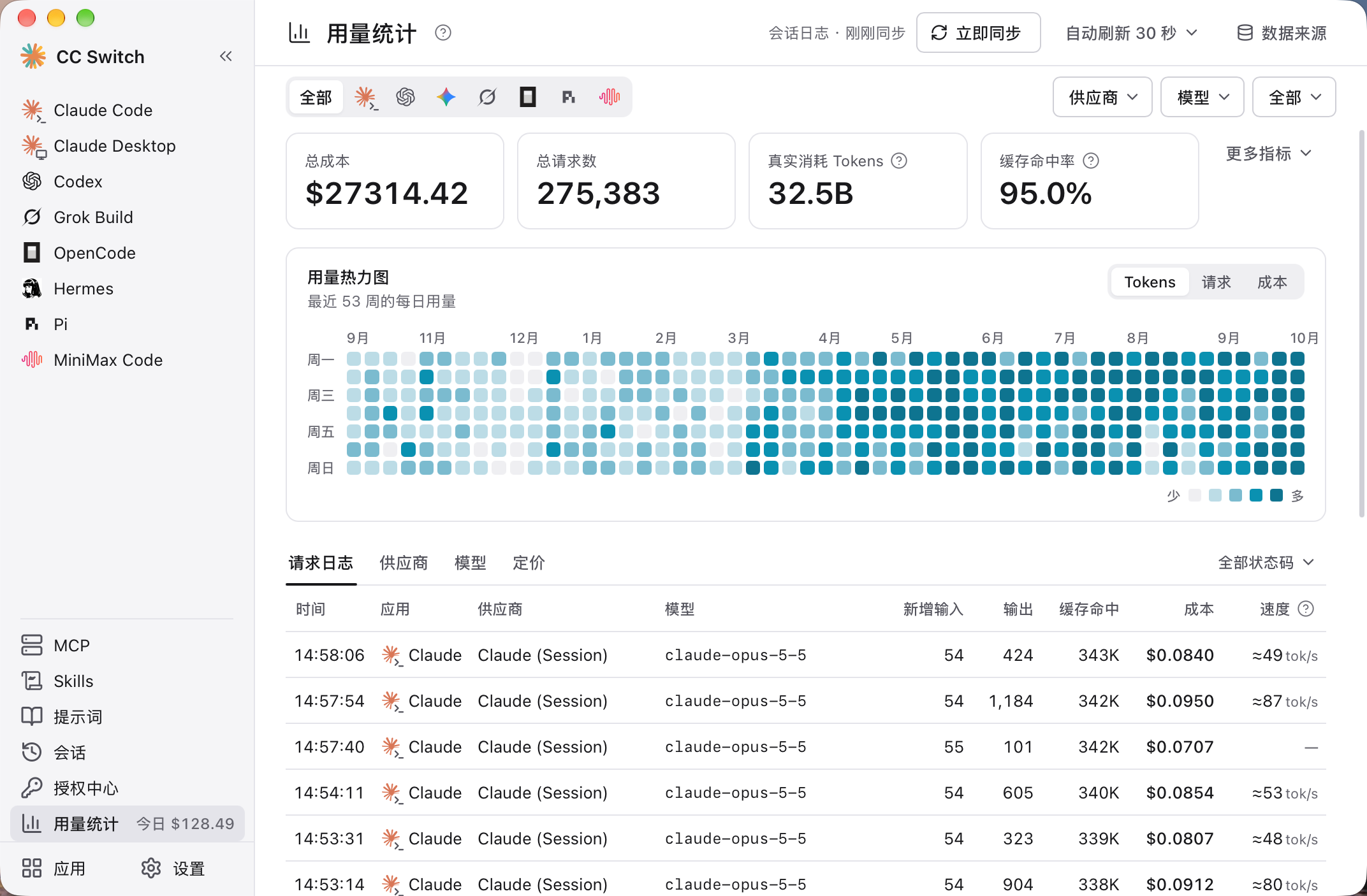
Choose the time range first, then read the request log.
Success check: you know where the record came from and do not mistake an estimated cost for the settled bill.
9. Find an earlier session
- Select Sessions, then choose the app and project.
- Search for the task and open the reading view.
- To continue it, use the resume entry supported by that tool.
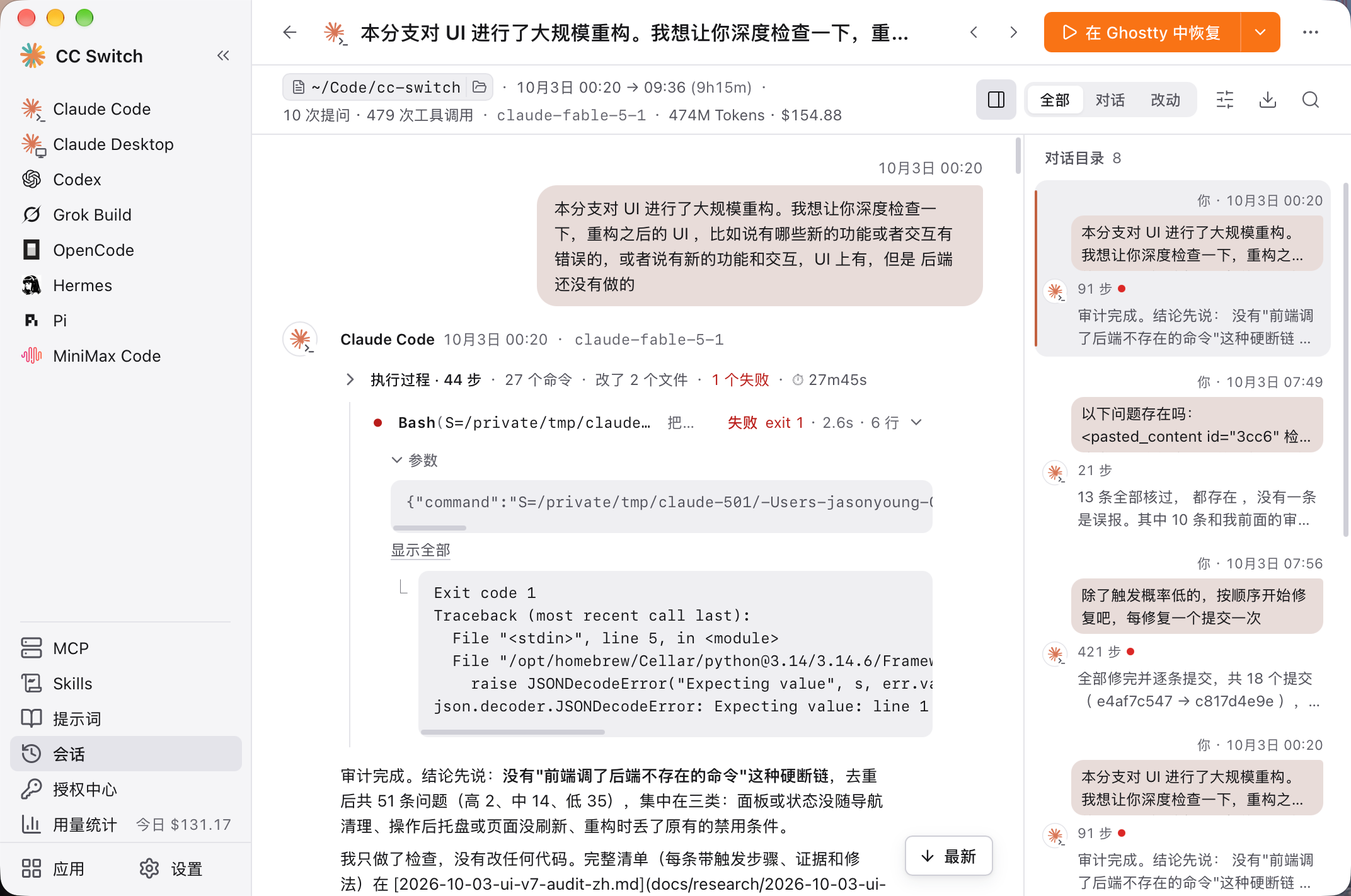
Check the project path at the top before continuing.
Success check: the conversation belongs to the intended project and matches its actual files.
5. Advanced use and recovery
Complete the exercise above before adding features as needed:
| Need | Feature |
|---|---|
| Protocol conversion or automatically switching to a backup after failure | Routing and failover |
| Choosing models from several providers inside the client | Aggregation; Claude Code/Codex only, without automatic failover |
| Connecting external tools | MCP |
| Reusing a workflow | Skills; read the contents before installation |
10. Add another model without recreating the provider
- Edit the existing provider, check its endpoint and key, then select Fetch model list.
- Search for the models you need, select only those entries and choose Add selected models.
- If the list endpoint returns 404/405, add the model ID manually according to the service's documentation. Do not confuse a display name with an ID.
In Codex Model mapping, the menu display name is for people, while the actual request model is sent to the API. Leave the context window and reasoning level blank if you are unsure; entering a larger number cannot expand the model's capabilities. Fully restart Codex after changes.
Success check: the new model appears in the client and can answer a short request. To choose across providers, continue with the aggregation guide.
11. Use logs to locate a failure
- Note the failure time, selected model and error code.
- Open Settings → Data → Application diagnostic logs → Open logs.
- Find the error for that period and check whether the request went to the expected endpoint, then check the key and model ID.
If the header reports a system environment-variable conflict, open View details and check where the variables came from. Remove only old settings you have confirmed are no longer needed. Before cleanup, the app backs them up to .cc-switch/backups/env-backup-<timestamp>.json. Restart the terminal and client afterward.
Success check: you can distinguish an unreachable endpoint, authentication failure and a nonexistent model instead of repeatedly reinstalling. Before asking someone for help, conceal keys, request content and personal paths.
12. Restore the original provider if setup goes wrong
- Return to Direct and choose the original provider.
- Restart the client as required and make another short request.
- If you must restore a backup, first export the current SQL database from Settings → Data, then import the required older backup. Importing overwrites providers, MCP, prompts, usage and other database content; it does not merely undo one card.
| Error | Check first |
|---|---|
| 401/403 | Key, permissions and whether the wrong provider is selected |
| Model not found | Whether the model ID belongs to the current API |
| Switching has no effect | In use status, the selected client and restarting |
| Routing connection failure | Whether CC Switch is running and old environment variables override the settings |
Final check: the new provider answers and the original provider can be restored. Complete both before adding a second provider.
References and images
The steps follow the official manual. Structural references include Gunzo's step-by-step guide, XieCoding's illustrated guide and Q Docs.
Images are original illustrations from the CC Switch documentation, licensed under MIT, Copyright (c) 2025 Jason Young. Brands belong to their respective owners.