
Claude desktop apps: Bring your everyday artifacts out of chat
Anthropic is letting users install Claude artifacts as Mac and Windows apps. They gain their own windows and icons but still need an internet connection. Start with a tool you already use regularly.
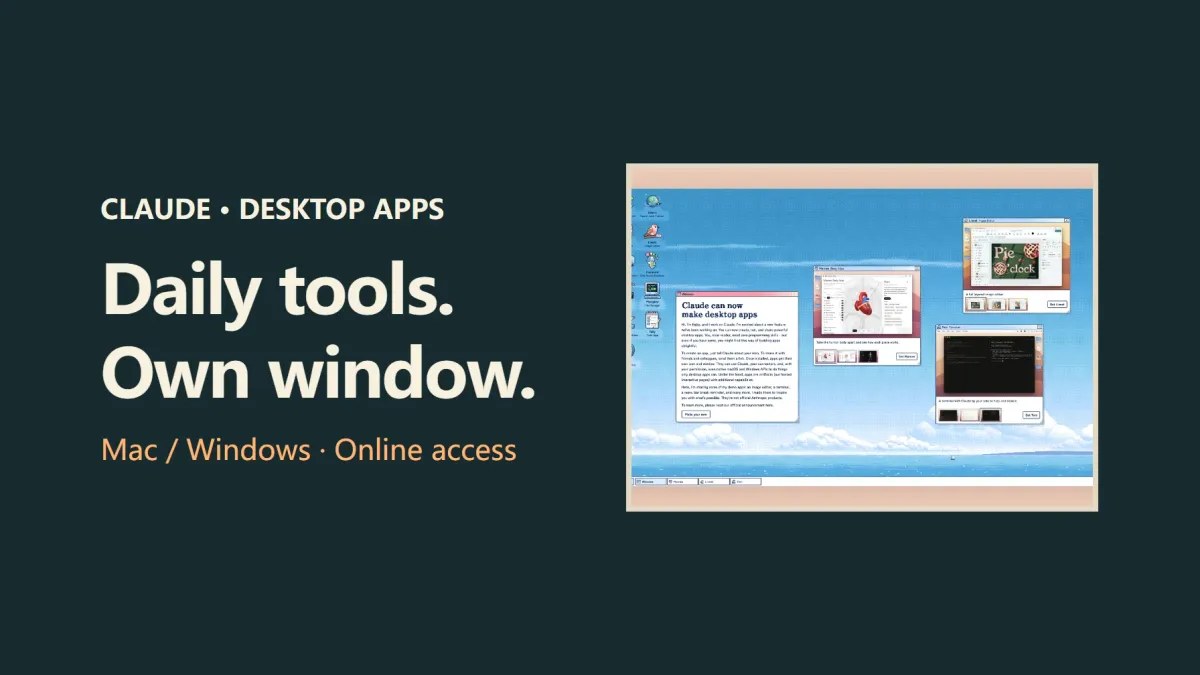
On November 24, Anthropic began rolling out “Install as app” to Mac and Windows users. Interactive tools created in Claude chats can now have their own desktop icons and windows. Timers and small dashboards you use regularly can open directly from the desktop.
An artifact is a piece of work Claude creates beside a chat that you can run and interact with. This update is most worth trying if you already have an artifact you use often. Moving it to the desktop makes more sense than inventing a software need just to try a new button.
Claude desktop apps make everyday tools easier to open
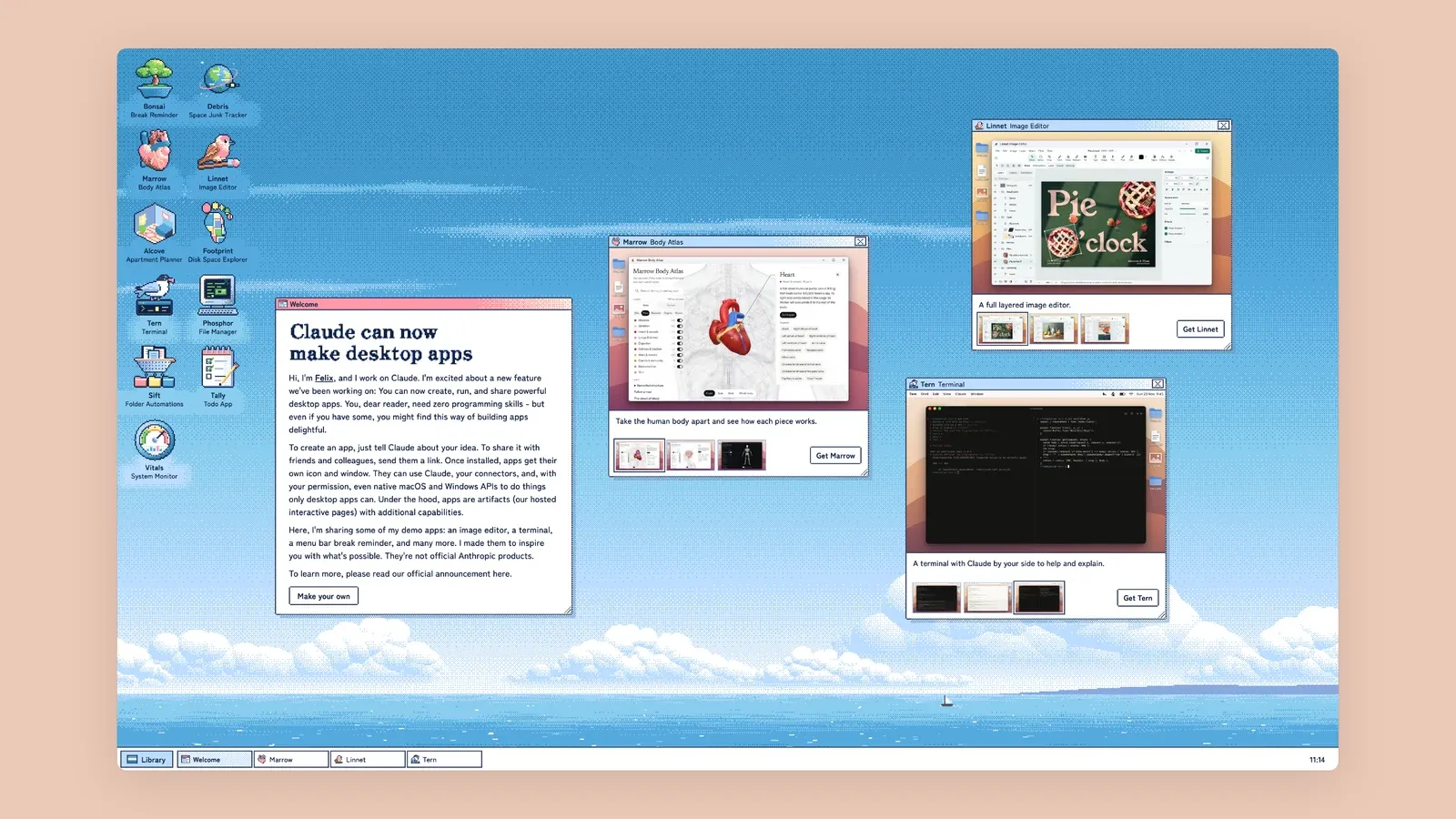
Anthropic has shown several tools built by its employees for different desktop uses. Linnet is a layered image editor, Phosphor is a file manager, Sift organizes files using folder rules, Tern puts Claude alongside a terminal, and Vitals lets users check computer performance from the menu bar at the top of a Mac screen or the system tray at the bottom right of Windows.
These examples are built around work people return to. An image editor needs a working window; computer performance is something you might want to check at a glance. Finding the right chat and reopening the artifact adds a detour each time. The tools can now launch like other apps and, with permission, send notifications, respond to global keyboard shortcuts—shortcuts that still work while you are in another app—or float above other windows.
Notifications can be particularly useful for a small tool. If a timer stays in the chat panel, you have to remember to check it. Allow desktop notifications and it can tell you when time is up. A system-tray performance monitor offers a similar benefit: it stays within reach without occupying a large window.
A separate window still needs an internet connection
An installed app is still the original artifact. Opening it requires an internet connection and a signed-in Claude account. When you or another editor changes the original, the installed app updates too. Requests the app sends to Claude still count toward your plan’s usage limits.
This installation feature is suited to bringing existing artifacts into your everyday desktop workflow. It is not a suitable route if you want offline use or want to give the tool to someone without a Claude account.
Desktop capabilities open up through permissions. By default, an app can do roughly what it could in a browser. Notifications, keyboard shortcuts, floating windows, and menu-bar or tray features require separate approval. A timer that only needs to remind you to take a break only needs notification permission.
Full computer access allows an app to run programs and read, change, or delete files. On personal accounts, only apps you made can request this level of access. A file-organizing tool might need it, but we recommend checking the results on copies first rather than letting an unclear sorting rule change the originals.
Claude asks for permission again after every artifact update, including your own edits. However, changes to code the artifact loads from other websites do not necessarily trigger a new permission request.
No install button? Do not keep rewriting the prompt
When Kingy AI’s Curtis Pyke opened a Focus Timer artifact in Claude 6.28899.6 for Mac, its menu showed “Pop out” but no “Install as app.” He did not complete a desktop installation. The official minimum version is 6.28899.0, but the feature is still rolling out in beta. Having a recent enough version does not guarantee your account already has the option.
Once the feature is available, installation is straightforward: open the artifact in the main Claude Desktop window, choose “Install as app” from its title menu, right-click menu, or Share, and then select “Install” to confirm. Windows users can subsequently launch it from the Claude Apps folder in the Start menu or a desktop shortcut.
If the button is missing, check for updates under Help on Windows or the Claude menu on Mac. Team and Enterprise users also need to check whether an administrator has enabled the feature. Template-based artifacts such as Docs, Slides, and Sheets cannot be installed; changing the prompt will not turn them into installable small apps.
Who fixes software you make yourself?
The Reddit discussion quickly split into two camps. In r/ClaudeAI, Carlidel saw another attractive button packaging something users could already do. agent_mick argued that just because technical users could do it before did not mean everyone else could do it easily.
The more practical debate concerns what happens after installation. Annual_Pay1951 worried that users would now have to work out what broke and how to fix it, rather than relying on someone else to maintain the software. phillythompson had a more positive experience: they used screenshots to report problems, got their homemade work tools into usable shape, and found them useful afterward. In another thread in r/ClaudeCode, thisguyfightsyourmom liked small apps tailored to personal needs that avoid the extra ads and features in existing apps.
A small tool made with Claude can be useful when you can explain what feels awkward and tell whether a change improves it. If you have to invent a purpose or cannot say what the correct result should be when something breaks, installing it simply gives an underused artifact another icon.
If you already have an artifact you use regularly, this installation feature is worth trying: give a timer access to notifications or put a performance panel you check often in the system tray. Start by moving one tool you use every day.
Further reading
- Anthropic: Turn artifacts into Mac and Windows apps
- Claude Help Center: Installation, permissions, and current limitations
- IT Home, Wen Zhou: Installing Claude-generated tools on the desktop
- Neowin, Pradeep Viswanathan: The desktop app launch
- Kingy AI, Curtis Pyke: Testing Focus Timer and the missing install button
- Reddit r/ClaudeAI: Buttons, convenience, and maintenance
- Reddit r/ClaudeCode: The debate over personal small apps