
Claude Code for beginners: install, connect and build a page
Install Claude Code, connect through official sign-in or the Orbis API, and build a local reading-list page. Then practice file references, context management, project rules and checking changes.
The goal: build a web page you can open
Claude Code is an AI assistant that can read and edit files and use tools. This guide uses the command-line interface (CLI): describe a task in a text window and let it work in a specified folder.
What you will complete: Create a reading-list page from an empty folder, open it to check the result, then change its title.
Before you start: use a supported system and network connection. We cover official account sign-in first, then optional Orbis API access.
1. Download and install
1. Open a terminal and choose the right command
- Windows: search for PowerShell in Start and open a standard window.
- Mac: press Command+Space and search for Terminal.
- Paste the command for your system and press Enter. Run these commands only in a terminal.
Windows PowerShell:
irm https://claude.ai/install.ps1 | iex
macOS / Linux:
curl -fsSL https://claude.ai/install.sh | bash
When installation finishes, open a new terminal and enter:
claude --version
Success check: A version number appears. These are the official installation methods, which download and run a script. Do not layer a duplicate installation over an existing one.
2. Alternatively, ask an existing agent to install it
Send this instruction to an agent that can execute commands on your computer:
Use https://code.claude.com/docs/en/setup to check my system and existing installation, then install Claude Code using an official method. Keep existing settings, avoid duplicate installations, and do not change system security policies. Leave sign-in and system authorization to me. Finally, verify the installation with claude --version.
Success check: The agent reports the version and how to start it. A regular browser chat cannot install software on your computer for you.
2. Sign in with an official account first
3. Start Claude Code and complete official sign-in
- Create a folder named
claude-firstin Documents, then enter it from your terminal withcd "<full folder path>". - Enter
claude. On first use, follow the prompts to choose an official sign-in method. Choose the subscription account route if you have a Claude subscription, or the Console route if you use the Console API. - Complete sign-in and authorization on the official page that opens, then return to the terminal. Your account needs the appropriate access; check subscription and API billing separately.
- Enter
/statusto check the account and working directory, then send: "Reply only: connection successful."
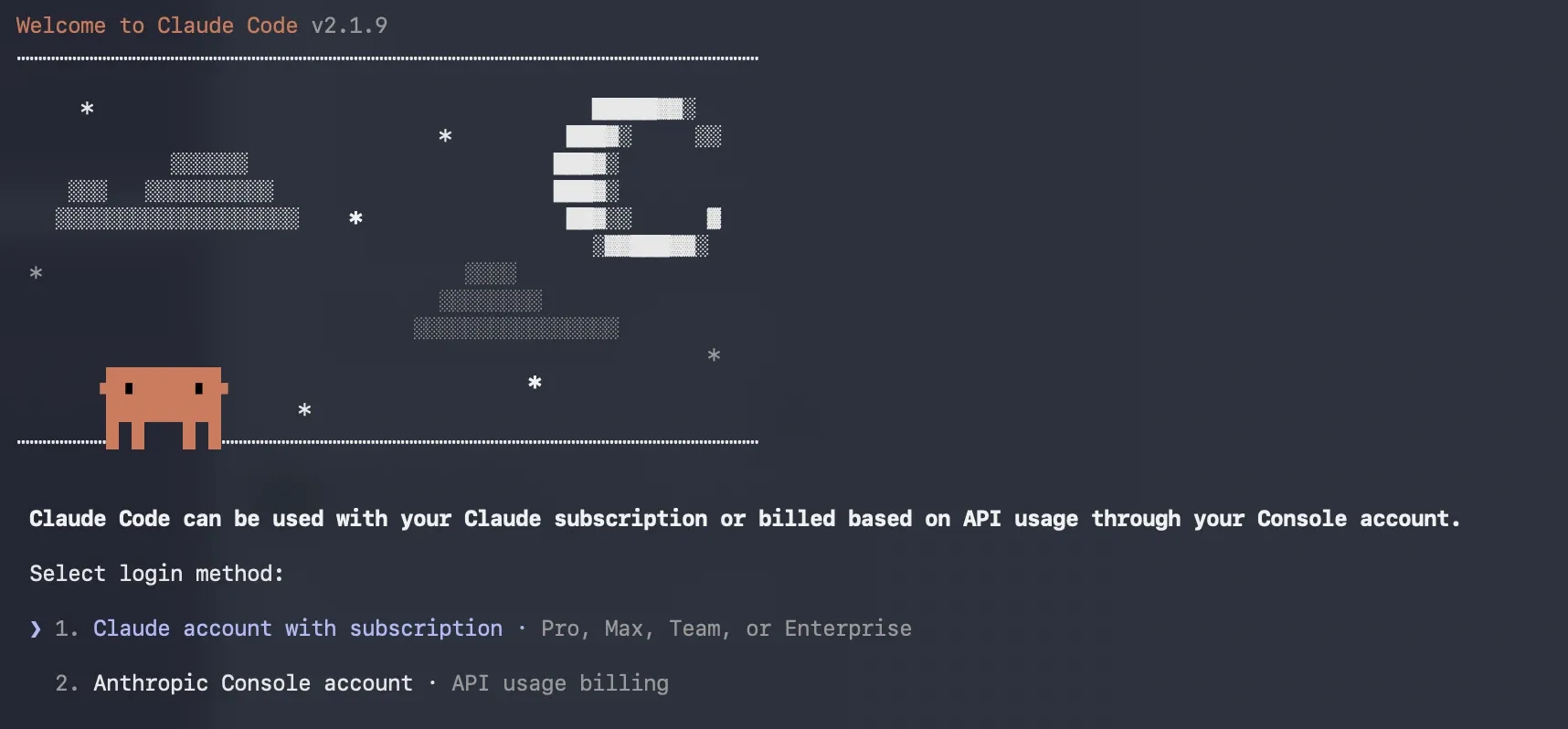
For identifying the official account routes only. Source: DataCamp, showing historical version v2.1.9.
Success check: Claude Code responds normally after you return, and the working directory is claude-first. See the official quickstart for the steps.
Once official access works, you can skip ahead to "First use: generate a web page." Complete the next section if you want to call a model through Orbis. You do not need to configure both routes.
3. Optional: use the Orbis API
4. Prepare a model, route and key
- Open the Claude Haiku 5.5 model page on Orbis for the steps.
- Select the Claude Code · AH route and follow the page's Get Key flow to obtain a key for that route.
- Select the new key in Orbis Quick integration and check the model and configuration. The available-model list on the route page is authoritative.
| Setting | Example used here |
|---|---|
| API base address | https://api.orbiorbi.com |
| Model ID | claude-haiku-5-5 |
| Authentication variable | ANTHROPIC_AUTH_TOKEN |
An API key lets an application access a service. An Orbis key is bound to a route; changing the model name does not switch routes automatically. Usage and credit depend on your Orbis account and route, separately from a Claude subscription.
Success check: You have an AH-route key, and the model ID shown on the integration page matches the table. Do not paste the key into chat or a web-page file.
5. Back up the configuration file before editing it
- Windows: enter
%USERPROFILE%in File Explorer's address bar, open or create the.claudefolder, and createsettings.jsonin Notepad. Choose All files when saving. - Mac: in Finder, press Command+Shift+G and enter
~/.claude. If it does not exist, create.claudein your home folder. Use a plain-text editor to savesettings.jsonfor the steps. - If the file already exists, first copy it to
settings-before-orbis.json. The following example assumes an empty file. For an existing file, merge only the corresponding entries insideenvand keep the other settings.
{
  "env": {
    "ANTHROPIC_BASE_URL": "https://api.orbiorbi.com",
    "ANTHROPIC_MODEL": "claude-haiku-5-5",
    "ANTHROPIC_DEFAULT_HAIKU_MODEL": "claude-haiku-5-5"
  }
}
Success check: The file is not named settings.json.txt, and the quotation marks and commas are intact. This file stores only the address and model; you enter the key in the next step. If you already have other ANTHROPIC_API_KEY, ANTHROPIC_AUTH_TOKEN or apiKeyHelper settings, back them up and remove unused authentication entries so multiple credentials are not active at once.
6. Enter the key in the terminal and start the exercise
- Create a folder named
claude-firstin Documents and copy its full path. - Open a new terminal and use
cd "<full folder path>"to enter the folder. - Run the appropriate command. When prompted for a key, paste your own Orbis key and press Enter. The input is hidden.
Windows PowerShell:
$env:ANTHROPIC_AUTH_TOKEN = [System.Net.NetworkCredential]::new('', (Read-Host 'Paste Orbis Key' -AsSecureString)).Password
claude
Mac's default terminal shell (Zsh):
printf 'Paste Orbis Key:'
read -rs ANTHROPIC_AUTH_TOKEN
printf '\n'
export ANTHROPIC_AUTH_TOKEN
claude
Success check: The task input area opens. This temporary key is available only to the current terminal and programs started from it. Enter it again in a new terminal. cd changes folders. Check the path before trusting a directory for the first time.
7. Check the actual connection, not just startup
- Enter
/statusand check thatAnthropic base URLis the Orbis address, the credential source isANTHROPIC_AUTH_TOKEN, and the model matches the ID above. - Send "Reply only: connection successful," then check the key, model and route in Orbis call logs. This request uses API credit.
- Then send: "Tell me in Chinese the full path of the current directory and the files already in it. Do not modify anything."
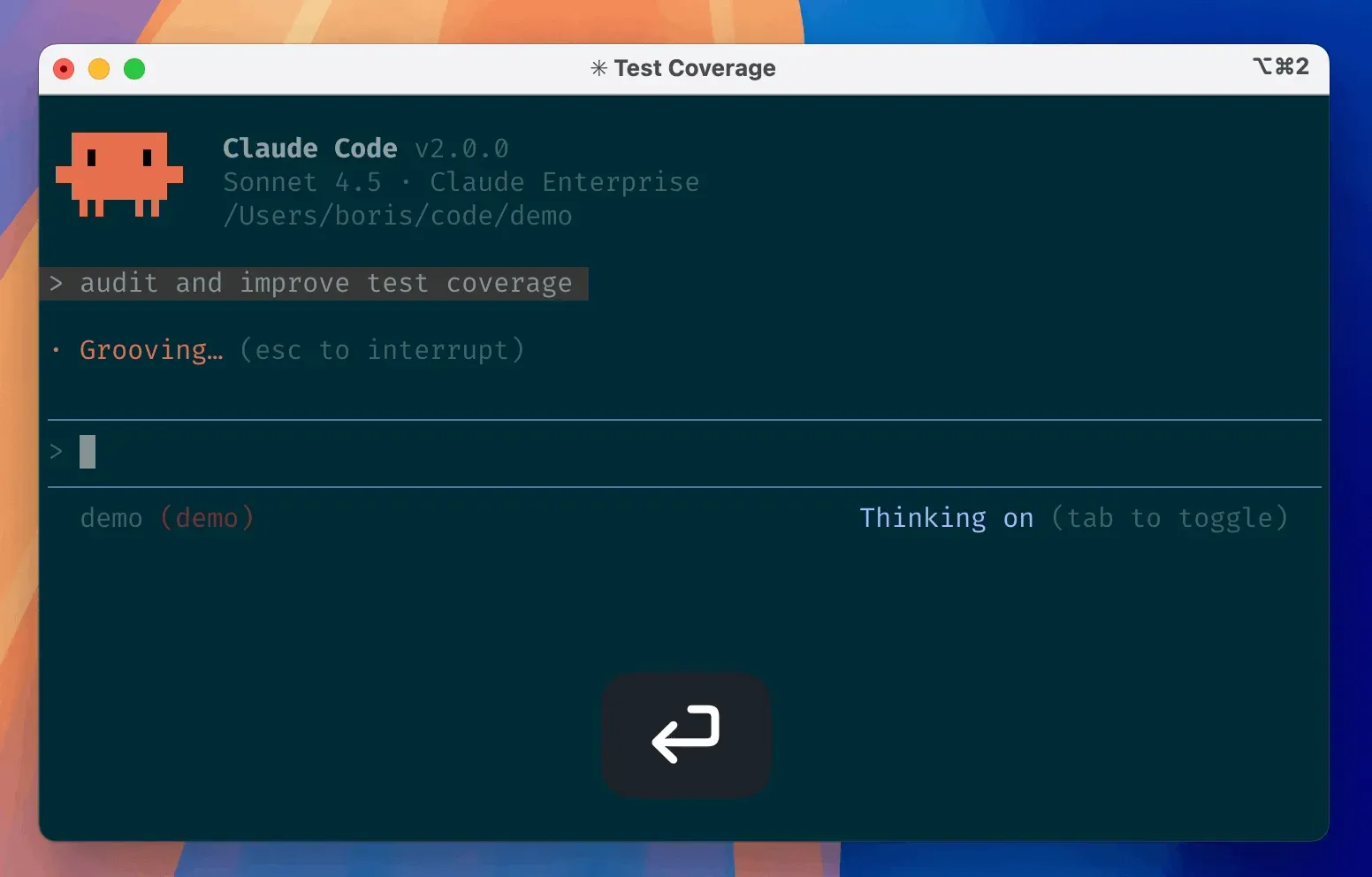
Check the path and input area. Your path should point to claude-first; verify the model using your own /status output.
Success check: The reply works, the call log matches, and the directory is correct. A model's claim about its own identity is not evidence of routing.
8. Switch back to an existing subscription account
When Orbis credentials are active, Claude Code uses the API route without needing Claude subscription sign-in. Setting only the address, without credentials, does not guarantee that the original subscription route is no longer used. Official gateway guidance
- To return to the subscription, exit Claude, close the terminal where you entered the key, and restore the backup configuration. If no configuration existed before, remove only the three
enventries added in this guide. - Open a new terminal and start
claude, sign in through the official account flow, then use/statusto confirm the Orbis address and credentials are no longer in use.
Success check: You know which service is active and where to check its usage allowance. If you previously persisted a key variable yourself, also remove the corresponding persistent setting.
4. First use: generate a web page
9. Give it a sufficiently specific task
Paste this into Claude Code's task input:
Create index.html in the current directory as a "Weekend reading list" page. Use one HTML file with styles inside it; install no dependencies and use no external images or scripts. Show three cards: a book I want to read, an article I want to read, and a question I want to research. Put "To be filled in by me" in each. Make it readable on a phone. When finished, give me the file path. Do not start a server or publish it.
HTML is a web-page file a browser can open. Limiting this exercise to one file makes the result easy to find.
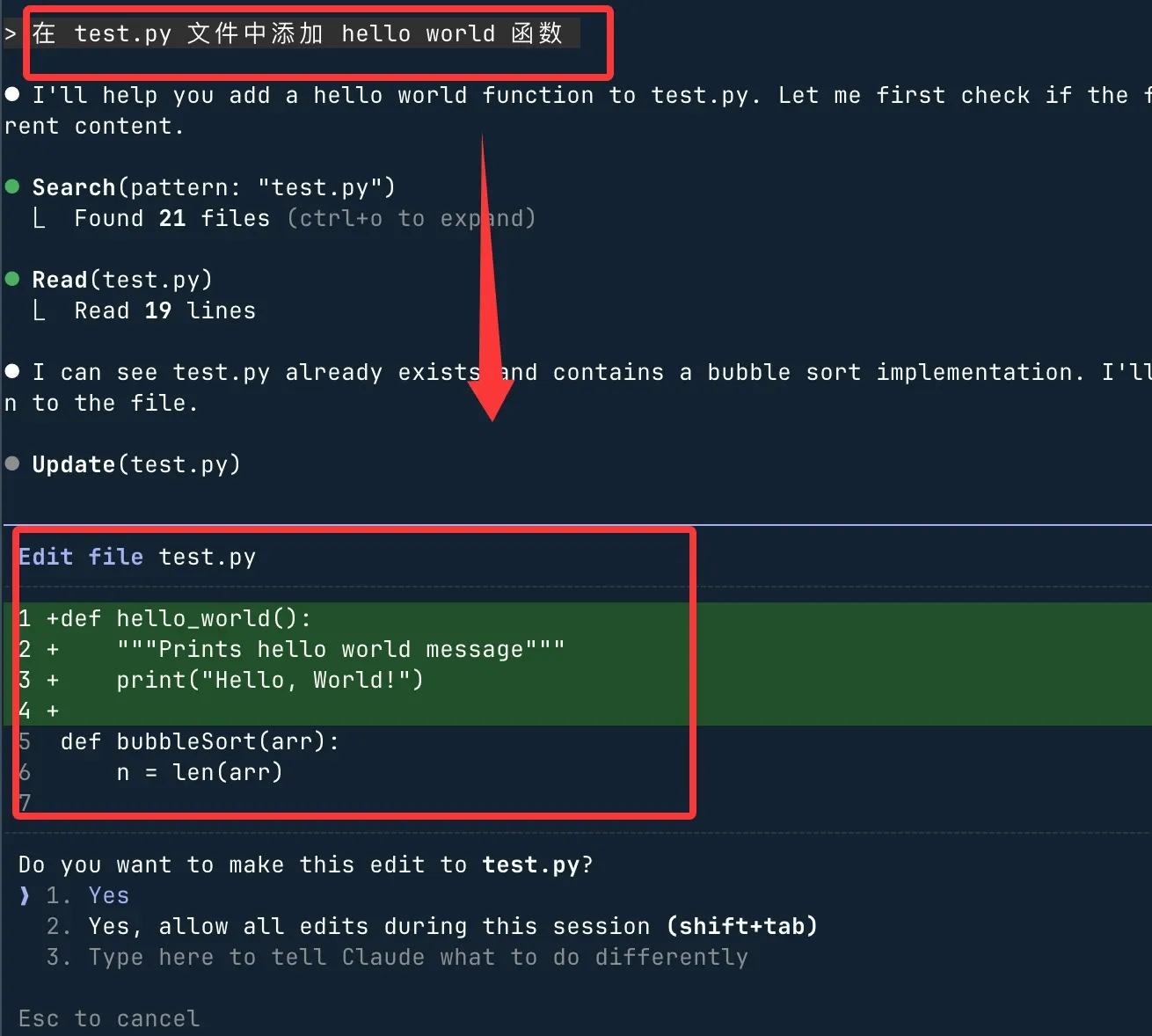
Look at the green additions, filename and confirmation options at the bottom. Source: Runoob. The screenshot shows a Python example; this guide works on index.html.
Success check: The folder contains index.html. If a permission prompt appears, check the action and path before allowing it.
10. Open the page and check three things
- Double-click
index.htmlin the folder and open it with a browser. - Check that the title and all three cards are present.
- Narrow the browser window and check that the text remains readable.
Success check: You see the complete page. If you cannot find the file, ask it for the save path first. Showing code in chat is not the same as saving a file.
11. Change the title once
Enter:
Change the page title to "My reading corner." Change only that item and tell me which file you edited.
Return to the browser and refresh.
Success check: The new title appears and the three cards stay unchanged. Describe a problem precisely, such as "The title is unchanged after refreshing," rather than immediately asking for a complete rewrite.
5. Basic operations: learn these commands first
12. View help and continue a conversation
Enter / in Claude Code to see the commands currently available.
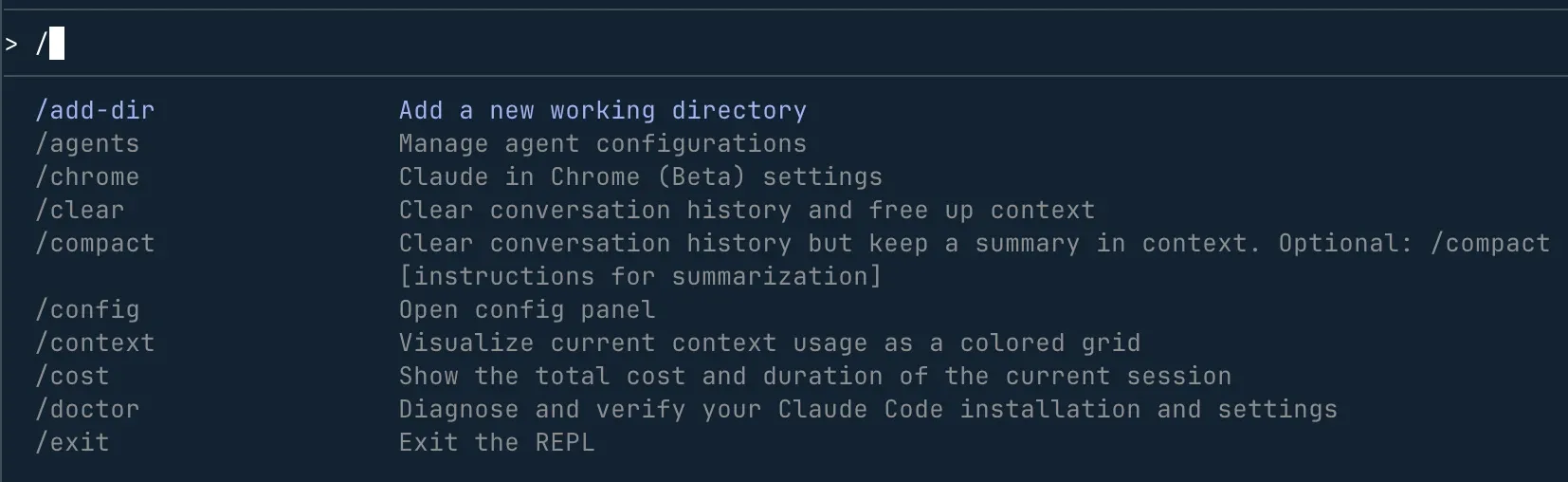
Source: Runoob. Read the command names on the left and descriptions on the right. The list changes with the version.
| Where to enter it | Command | Purpose |
|---|---|---|
| Inside Claude Code | /help |
Show help |
| Inside Claude Code | /exit |
Exit to the regular terminal |
| Regular terminal | claude -c |
Continue the most recent conversation in the current directory |
| Regular terminal | claude -r |
Select a past conversation |
Success check: After exiting, you can return to the same conversation and keep editing the same page. Official command guidance
13. Use file references to narrow the task
- Enter
@and selectindex.htmlfrom the suggestions, or type its full filename. - Send: "Explain only where the content of the three cards is defined in this file. Do not modify it."
- Then send: "Change only the first card to 'I will fill in the book title'; keep the other two."
Success check: The reply refers to the correct file, and only one card changes after refreshing. @ helps locate material; it does not automatically authorize arbitrary edits.
14. Interrupt, correct and resume
- If it starts installing unnecessary software, press
Escto interrupt, then say: "Keep it to one file, install no dependencies, and report changes already made." - Use
/exitto leave, then runclaude -cin the original directory to resume. With temporary Orbis variables, start it in the same terminal or enter the variables again. - When moving to a completely different project, use
/clearto start a new conversation. This does not restore or delete the existing files.
Success check: You can distinguish stopping work, continuing an old conversation and starting a new one. An interruption may happen after a file has already been written, so still open the page and check it.
15. Organize the context when the conversation grows
Context is the material and history carried by the conversation. First use /context to view usage, then enter:
/compact Keep the page path, single-file constraint, completed edits and remaining tasks
Next ask: "Restate the current goal and constraints without making changes."
Success check: The summary retains the key requirements. Write important agreements into files rather than relying only on conversation memory. Command reference
6. Beyond the basics: finish the page and verify it
16. Plan before adding a feature to the cards
- First use your file manager to copy
index.htmland name the copyindex-before-button.htmlfor the steps. - Enter
/planand send the request below. If an older version lacks this command, explicitly ask for a plan without file changes. - Read the plan and confirm the scope before asking it to proceed.
Add a "Read" button to each of the three cards. Clicking it should toggle the state, and the state should survive a refresh. First explain where the state will be saved, which parts will change and how to test it. Do not edit files yet.
Success check: You receive a plan first. After approving execution, click each card's button, refresh, then unmark it. Browser-local storage is not cross-device synchronization.
17. Put ongoing requirements in CLAUDE.md
Enter /init in the exercise directory and inspect the generated CLAUDE.md. Keep what fits this project and add:
# Project agreements
- Explain results in Chinese.
- Keep the page in one HTML file and install no dependencies.
- Use no external images or scripts and do not publish.
- After edits, list changes and manual verification steps.
Start a new conversation and send: "Read the project rules, restate the constraints, and suggest one small improvement. Do not execute it yet."
Success check: It cites the correct requirements. This file contains working instructions, not API keys. Back up an existing file of the same name before merging.
18. Review changes and keep a recoverable version
- Ask it: "Compare index.html with index-before-button.html and list additions and deletions. Inspect only; do not modify anything."
- Test the buttons and narrow layout in your own browser before deciding to keep the result. To revert, restore the backup after saving the current version separately.
- Readers already familiar with Git, a file version-control system, can use
/diffto view changes. File copies are enough for this basic exercise.
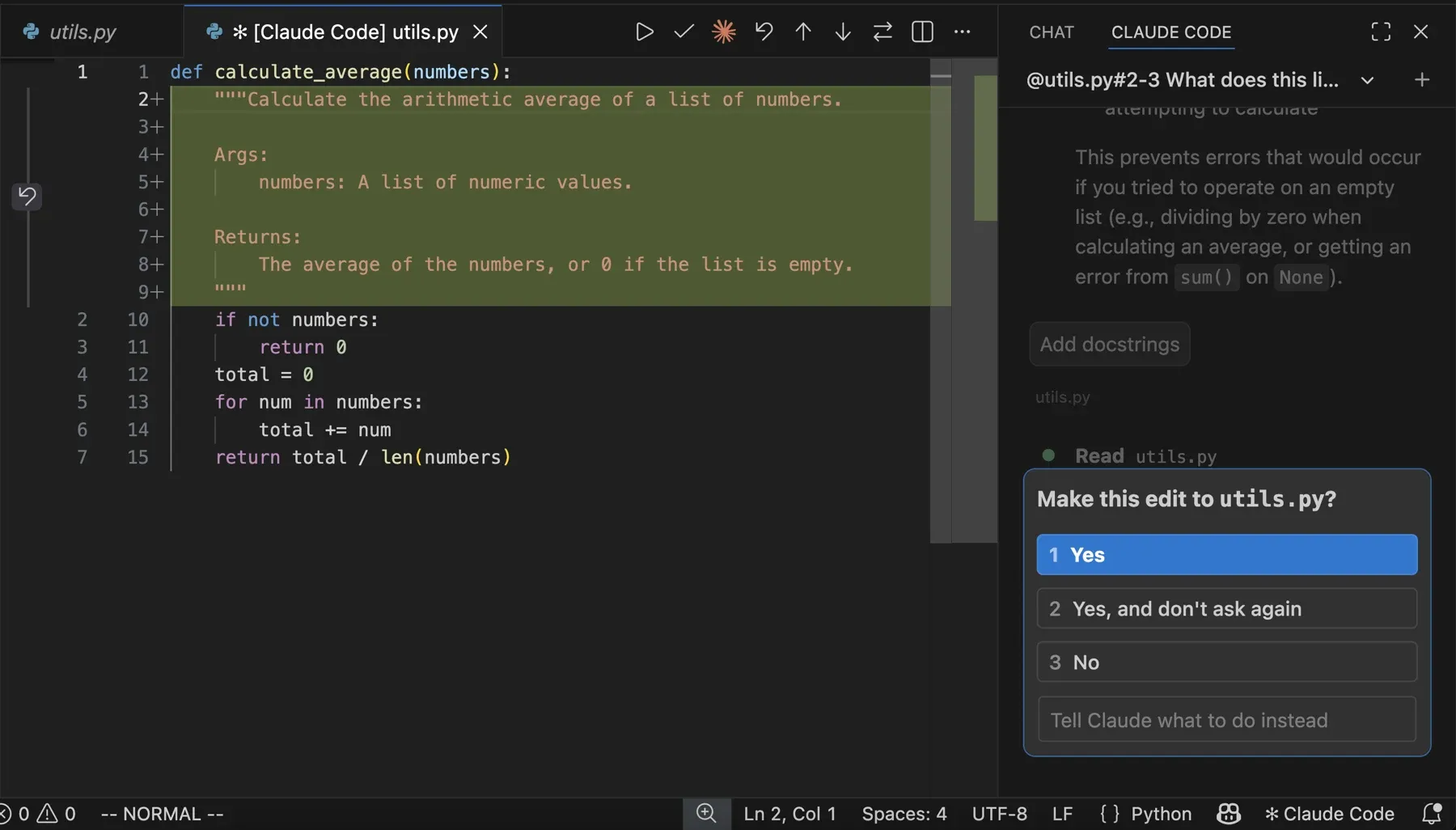
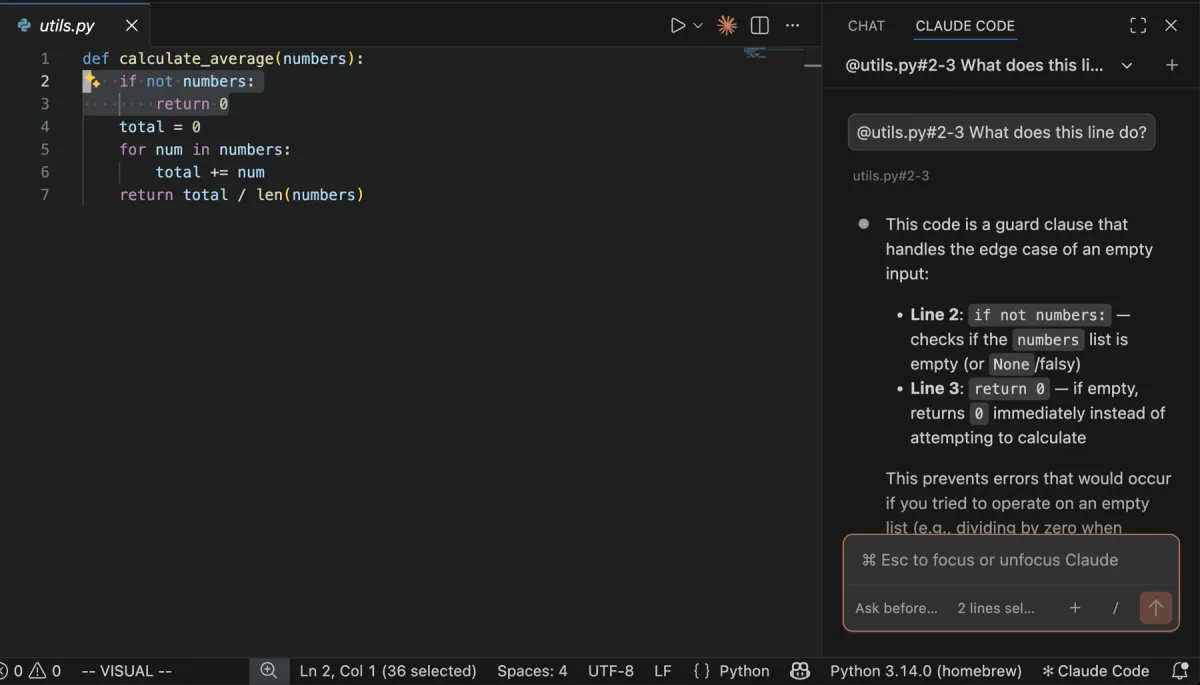
Optional VS Code extension: inspect changes on the left and confirm on the right. This image does not prove that Orbis is configured. Set extension authentication separately using the Official gateway guidance.
Success check: You can identify the changes, run the checks and return to the previous version. AI self-review supplements your own inspection of the result; it does not replace it.
Troubleshooting: start with this table
| Symptom | What to check first |
|---|---|
| claude command not found | Open a new terminal, then check installation and PATH using official troubleshooting guidance |
| irm is unavailable | Make sure you opened PowerShell rather than CMD |
| 401 / authentication failure | Check the full key, the AH route, and whether credentials are set in the current terminal |
| Model not found / 404 | Use the exact model ID; do not use Codex's /v1 path for the Claude base address |
| /status still shows the old address | Check the matching env entries in settings and any project or managed configuration, restart, then inspect again |
| 429 / no credit | Check Orbis credit, route limits and call logs; retry according to the error |
| A file is missing | Check the working directory, full path and save status |
Work only in the exercise directory and keep keys and private material out of it. For installation and functionality, use the official documentation as the authority. The teaching structure draws on DataCamp and Runoob.