
Codex for beginners: installation, first task and next steps
Learn Codex with a short reading record: install the CLI, configure optional Orbis API access, create and verify a file, then practice session recovery, context management, plans and project rules.
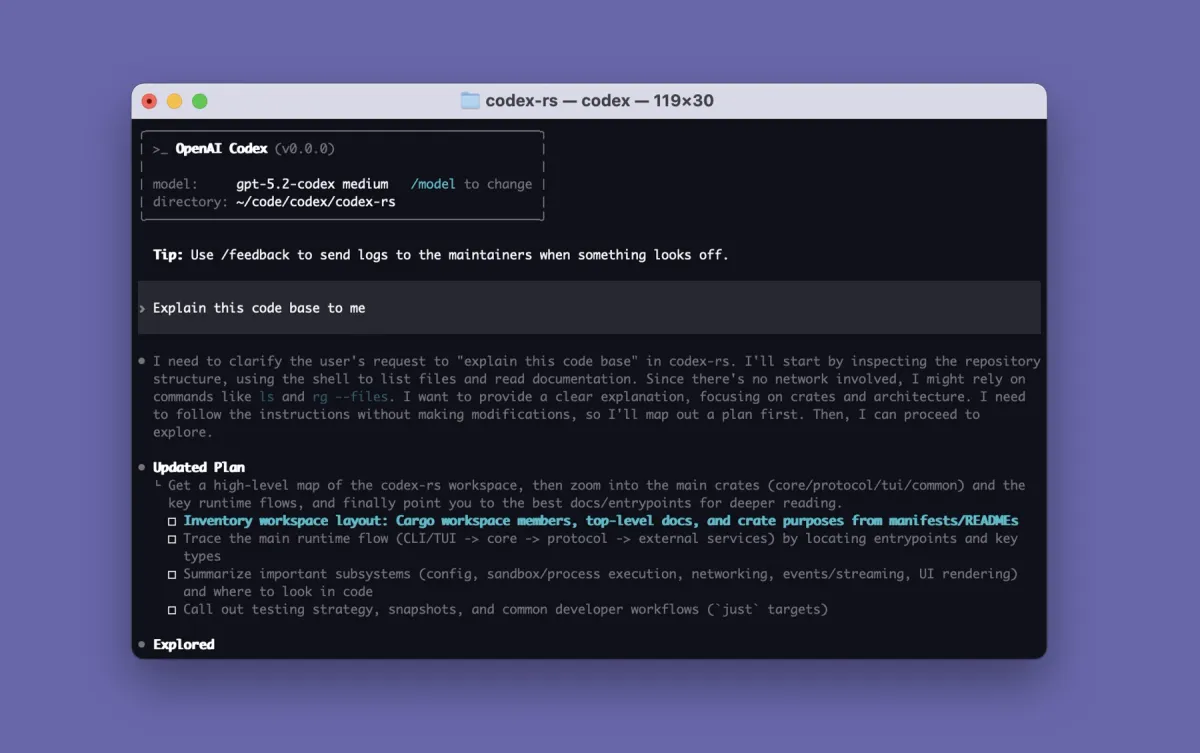
The goal: turn three records into one plan
Codex is an AI assistant that can read files, edit content and execute commands. This guide uses the command-line interface (CLI) to complete your first task in a text window.
What you will complete: Create 阅读计划.md, check that nothing was invented and the source was not changed, then make one targeted revision.
Before you start: you need a working network connection. We introduce ChatGPT account sign-in first, then optional Orbis API access. Installing Codex does not include API credit.
1. Download and install
1. Open a terminal and install Codex
- Windows: search for PowerShell in Start and open a standard window.
- Mac: press Command+Space and search for Terminal.
- Copy the command for your operating system, paste it and press Enter.
Windows PowerShell:
powershell -ExecutionPolicy ByPass -c "irm https://chatgpt.com/codex/install.ps1 | iex"
macOS / Linux:
curl -fsSL https://chatgpt.com/codex/install.sh | sh
These are the official standalone installers, so you do not need to install Node.js first. The scripts download and install over the network. The Windows policy option applies only to this process; do not disable system policy permanently.
2. Check that installation succeeded
Open a new terminal and enter:
codex --version
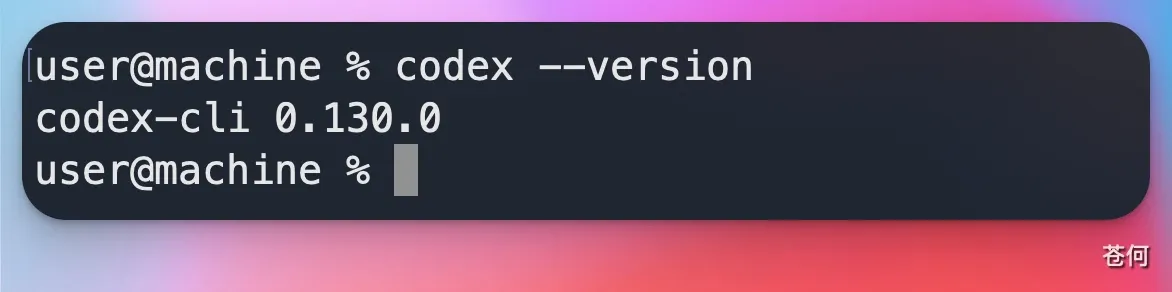
Source: CodexOne. Look for codex-cli and the number below the command. Version 0.130.0 is an example; yours need not match.
Success check: A version number appears rather than a command-not-found message.
3. Alternatively, ask an existing agent to install it
Send this to an agent that can execute commands on your computer:
Read https://learn.chatgpt.com/docs/codex/cli, check my system and existing installation, and install Codex using an appropriate official method. Keep settings, avoid duplicate installation and do not permanently change system security policy. I will handle sign-in and system authorization. Finally, verify with codex --version.
Success check: It reports the version and how to start it. A regular web chat can only provide guidance if it has no permission to execute on your computer.
2. Prepare files and API access
4. Create an exercise folder
- Create a folder named
codex-firstin Documents. - Use Notepad to create
阅读记录.txt, copy the following content into it and save. - Make sure the filename has no extra
.txtsuffix. On a Mac, use a plain-text editor.
A: A book about learning methods. I finished the first chapter and want to understand how to schedule revision.
B: An article about AI tools. Not read yet; I plan to read it over the weekend.
C: A personal website. I want to know what a beginner needs to prepare, but have no material yet.
Success check: Opening the file shows records A, B and C.
5. Sign in with a ChatGPT account first
- In the terminal, use
cd "<full path to codex-first>"to enter the folder you just created, then runcodex. - On first startup, choose Sign in with ChatGPT and complete sign-in and authorization on the official page that opens.
- Return to the terminal and enter
/statusto view the account, model and working directory. Access and usage allowance depend on what your account shows. - Send "Reply only: connection successful" and check that a response arrives.
Success check: Codex replies normally and the working directory is codex-first.Official authentication guidance
You can now skip ahead to "First use: read, generate and check." Configure the next section if you want to use Orbis model services. An Orbis key is not for ChatGPT sign-in.
3. Optional: use the Orbis API
6. Obtain a key for the appropriate Orbis route
- Open the GPT 6.1 Sol model page on Orbis.
- Select the GPT · HA route and obtain a key through the page's Get Key flow.
- Select this key in Orbis Quick integration and view the Codex configuration. Use the route page's model list as the authority.
| Setting | Example used here |
|---|---|
| Base URL | https://api.orbiorbi.com/v1 |
| model | gpt-6.1-sol |
| API protocol | responses |
| Route bound to the key | GPT · HA |
An Orbis key is route-bound. Changing model does not switch routes automatically. Check API credit in Orbis, separately from your ChatGPT subscription. This key is not a ChatGPT password.
Success check: You have an HA-route key and a model ID matching the configuration. Do not send the key to Codex or put it in exercise files.
7. Create a separate Orbis configuration
This guide uses the separate named profile in Codex 0.134.0 or later. First check with codex --version and update older versions through an official installation method. New versions no longer read the old tutorial setting [profiles.orbis].Official configuration guidance
- Windows: enter
%USERPROFILE%in File Explorer's address bar, open or create.codex, and createorbis.config.tomlwith Notepad. Choose All files when saving. - Mac: in Finder, press Command+Shift+G and enter
~/.codex. If it does not exist, create.codexin your home directory and use a plain-text editor to saveorbis.config.toml. - First copy your existing
config.tomltoconfig-before-orbis.toml. Save another copy of any existingorbis.config.tomltoo. Do not edit the original default configuration or put the following configuration in the project folder.
Put the following into the new orbis.config.toml:
model = "gpt-6.1-sol"
model_provider = "orbis"
web_search = "disabled"

[model_providers.orbis]
name = "Orbis"
base_url = "https://api.orbiorbi.com/v1"
wire_api = "responses"
env_key = "ORBIS_API_KEY"
Success check: The file is not .toml.txt.model and the other two opening settings appear before the bracketed table heading. env_key contains a variable name, not the real key. Keep built-in web search disabled initially, then check which extra capabilities the route supports after file tasks work.
8. Enter the key and start from the exercise folder
- Copy the full path of
codex-firstand usecd "<full folder path>"in the terminal to enter it. - Run the appropriate command, paste your own key when prompted, and press Enter. The input is hidden.
- Keep this terminal open and use it to resume conversations later.
Windows PowerShell:
$env:ORBIS_API_KEY = [System.Net.NetworkCredential]::new('', (Read-Host 'Paste Orbis Key' -AsSecureString)).Password
codex --profile orbis
Mac's default terminal shell (Zsh):
printf 'Paste Orbis Key:'
read -rs ORBIS_API_KEY
printf '\n'
export ORBIS_API_KEY
codex --profile orbis
Success check: Codex starts. The key is available only to the current terminal and programs started from it; enter it again in a new terminal. Do not put a real key in TOML.
9. Check status, then make a small request
- Enter
/statusand check that it uses the Orbis provider,gpt-6.1-soland thecodex-firstdirectory. - Send "Reply only: connection successful" and check the key, model and route in Orbis call logs. This request uses API credit.
- Next complete the read-only file exercise below and ask a follow-up question to check that file tools and conversation continuation work.
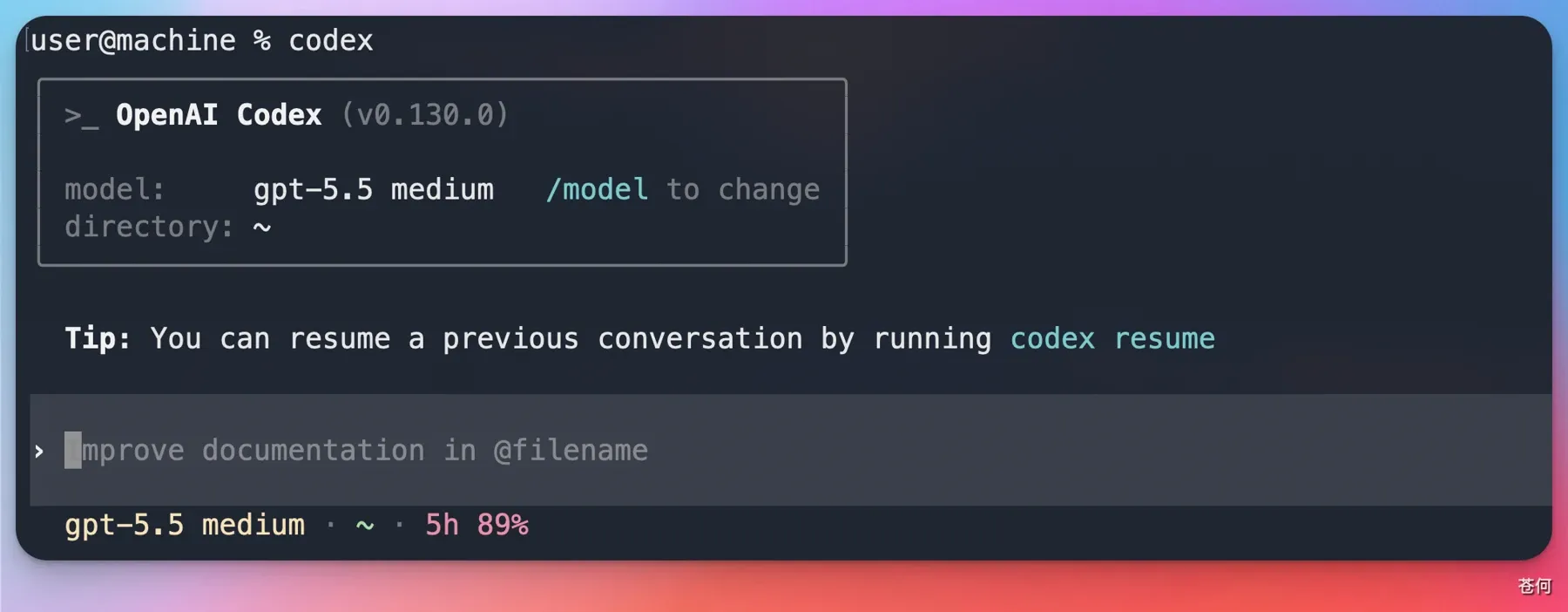
Source: CodexOne. Look only at the directory and gray input area.
Success check: Replies work, call logs match, and file reading and follow-up conversation succeed. One text reply does not prove compatibility with every tool. If the model shows generic capabilities or is unrecognized, check the current Codex version and model catalog with the route operator; do not invent an alias.
10. Keep the official sign-in route and a way back
- Use
codex --profile orbisfor Orbis. Do not submit an Orbis key to the ChatGPT browser sign-in page. - To return to the original route, exit and close the terminal, then open a new terminal and run
codexwithout a profile. If you were not previously signed in, choose Sign in with ChatGPT and complete browser authorization. - If you modified the default
config.toml, restore its backup first. Use/statusafter every switch to verify the result. Profiles still inherit base configuration and remain subject to managed rules.
Success check: You can distinguish API calls using an Orbis key from use through a ChatGPT account. Official authentication and gateway configuration explain the two routes.
4. First use: read, generate and check
11. Start by reading the file without edits
Enter:
Report the full path of the current working directory, read 阅读记录.txt, and restate records A, B and C. Do not change files or add information missing from the source.
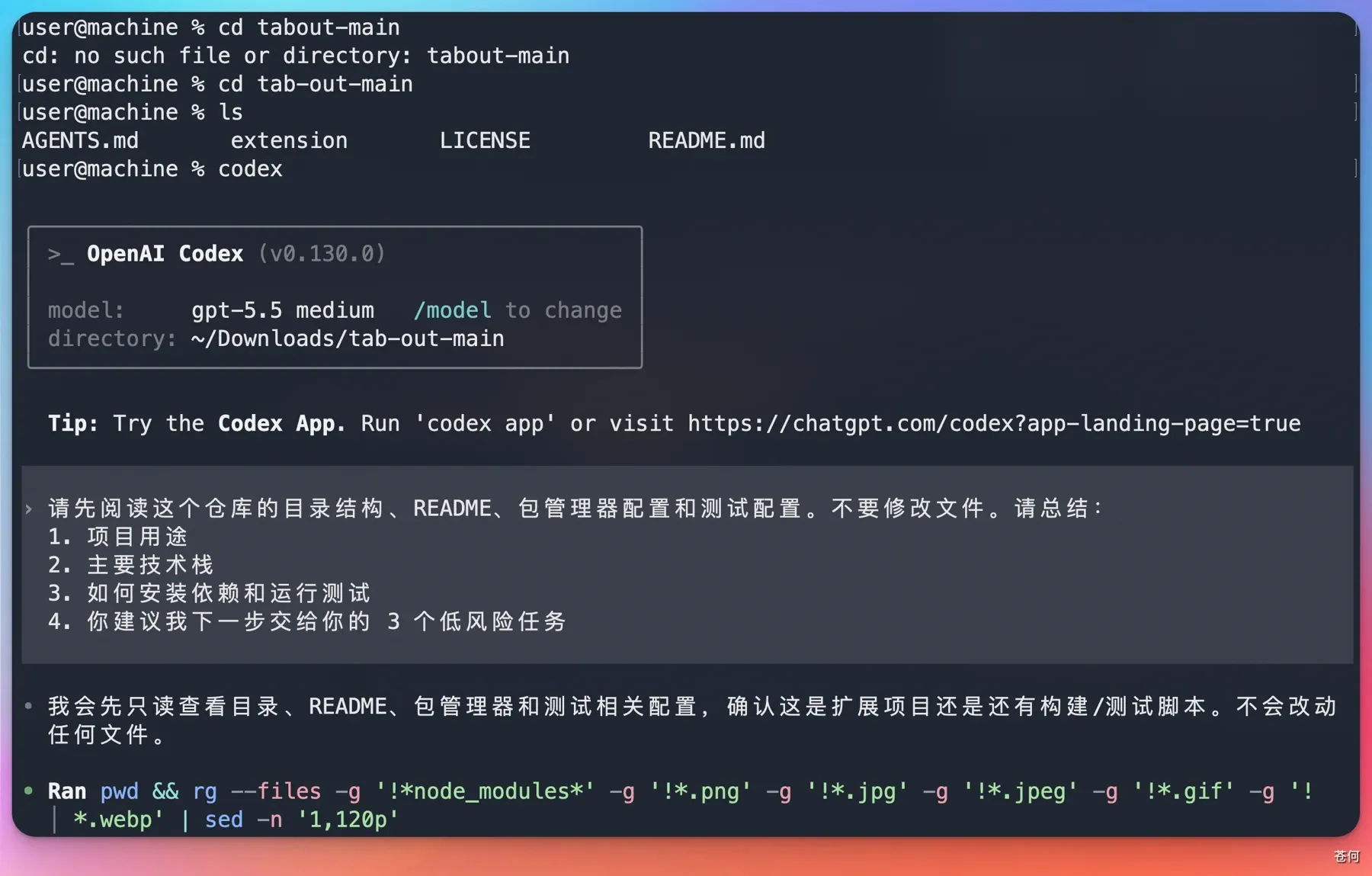
Source: CodexOne. The Chinese request says not to modify files. The upper part preserves the author's correction after entering a wrong directory. Do not copy those paths or commands.
Success check: The path points to codex-first and all three records match the source. Otherwise, correct the location or filename first.
12. Generate a new file
Continue with:
Based on 阅读记录.txt, create 阅读计划.md with sections for 'Already started,' 'Ready to read' and 'To research.' Keep the source information in every item and add a next action explicitly labeled 'Suggestion.' Do not invent book titles, authors, URLs or dates. Do not edit the source file. When finished, give me the output file's full path.
Markdown is plain text, so a .md file can also be read in Notepad.
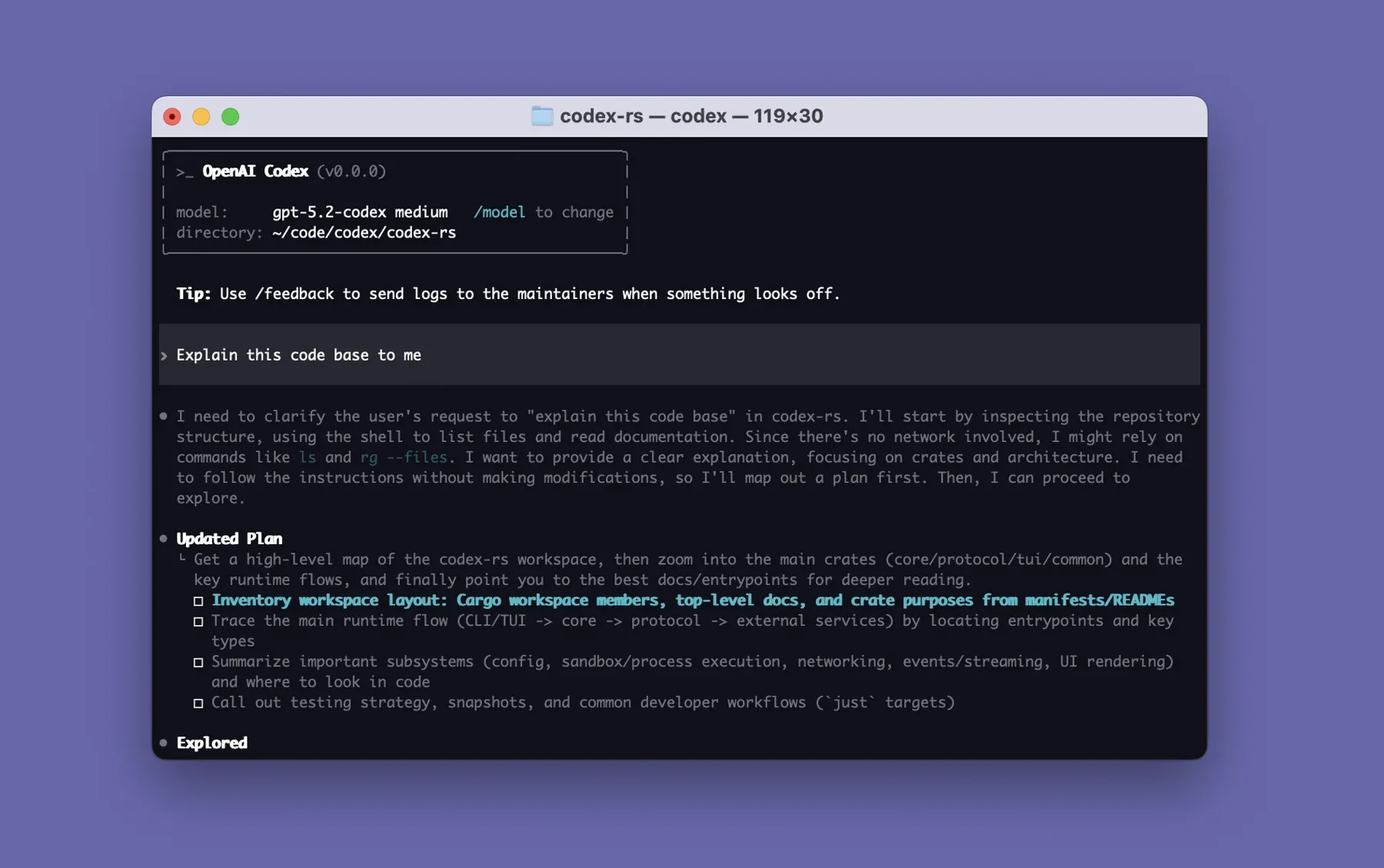
An example from the official repository. Look at the plan and execution log near the bottom. They help track progress, but you still need to open and verify the output file. The project and historical model shown are not part of this exercise.
Success check: The folder contains 阅读计划.md. If a write-permission prompt appears, check the path and action before allowing it.
13. Open the result, then make one revision
- Open
阅读计划.mdand check the three categories, where A/B/C were placed, and the Suggestion labels. - Open the original
阅读记录.txtand confirm it has not changed. - Request the targeted edit below, then reopen the plan and check it.
Change B's suggestion to 'Read the beginning of the article first and note one question I most want to understand.' Keep everything else unchanged.
Success check: The target sentence changes and everything else stays intact. Remove facts not present in the source rather than keeping them because the writing sounds fluent.
5. Basics: check status and resume
14. Know where to enter each command
| Where to enter it | Command | Purpose |
|---|---|---|
| Regular terminal | codex --help |
Show help |
| Regular terminal | codex resume |
Select a past conversation |
| Inside Codex | /status |
View current status |
| Inside Codex | /permissions |
View task permissions |
| Inside Codex | /model |
Choose a model available to the account |
| Inside Codex | /exit |
Exit |
First use /exit, then run codex resume in the same directory. For the Orbis route use codex --profile orbis resume and select the conversation you just used.
Success check: You can keep working on the same plan. Official command reference
15. Name the file to keep the task from expanding
Inside Codex enter /mention 阅读计划.md, select the matching file, then send:
Check only whether every suggestion in this plan has a Suggestion label. List missing labels one by one. Do not edit anything or read other directories.
Then you can add: "Fix only the labeling issues just listed. Leave the other sentences unchanged."
Success check: It refers to the correct file and limits changes to the stated problems. Mentioning a file locates material; it does not verify all of its content for you.
16. Practice exiting, resuming and starting a new conversation
- First use
/rename Reading plan practiceto name the current conversation. /exitto exit, then runcodex resumein the original directory and select the conversation. Orbis users should usecodex --profile orbis resumeand keep the key variable available.- For an unrelated task use
/newto start a new conversation. This does not back up your current files.
Success check: You can find the old task by name and continue editing its plan. After switching, use /status to check the model, permissions and directory again.
17. Manage the context of a long conversation
Context is the conversation and material Codex currently refers to. When it grows long, first ask for a summary of the goal, files, constraints and remaining tasks. Then enter /compact and ask it to restate the next step.
Success check: After shortening the history it still remembers not to change the source and to label suggestions. If anything is missing, restate the requirement before proceeding. A summary is not a file backup.
6. Beyond the basics: plans, rules and review
18. Plan a merge before processing multiple files
- Copy the full path of
阅读记录.txtto阅读记录-2.txtand manually add record D: 'An article about time management, to research.' - Enter
/planand send the request below. - Check the deduplication rules and output location before explicitly asking it to proceed.
Design a plan for merging the two reading records. Keep one copy of repeated A/B/C entries and put D in To research. Do not edit either source file; put the result in output/合并计划.md. First explain how you will identify duplicates and check for omissions. Do not execute the plan yet.
Success check: A, B, C and D each appear once after execution, and both source files remain unchanged. Keep ambiguous entries and mark them for confirmation rather than guessing.
19. Put recurring requirements in AGENTS.md
Enter /init in the exercise directory, open the generated AGENTS.md, inspect its content and add:
# Project rules
- Explain results in Chinese.
- 阅读记录*.txt files are sources; do not edit them.
- Label additional ideas as Suggestion; do not invent facts.
- Write to output/; check for an existing file of the same name before writing.
- When finished, list output paths and verification results.
Use /new to start a new conversation and ask it to read and restate the project rules without executing a task. Back up an existing file of the same name before merging, and keep API keys out of it.
Success check: The new conversation can explain the source, output and factual boundaries without you pasting the same requirements every time.
20. Let it review the result, then check the evidence yourself
- Ask: "Review output/合并计划.md against both source files for omissions, duplicates and invented content. Identify the source entry for every issue. Report only; do not edit."
- Open all three files yourself and compare them. Confirm that a reported issue exists before asking for a targeted correction.
- If the project already uses Git, you can use
/diffto view changes, then/reviewto check code issues. You do not need to learn Git first for this plain-text exercise.
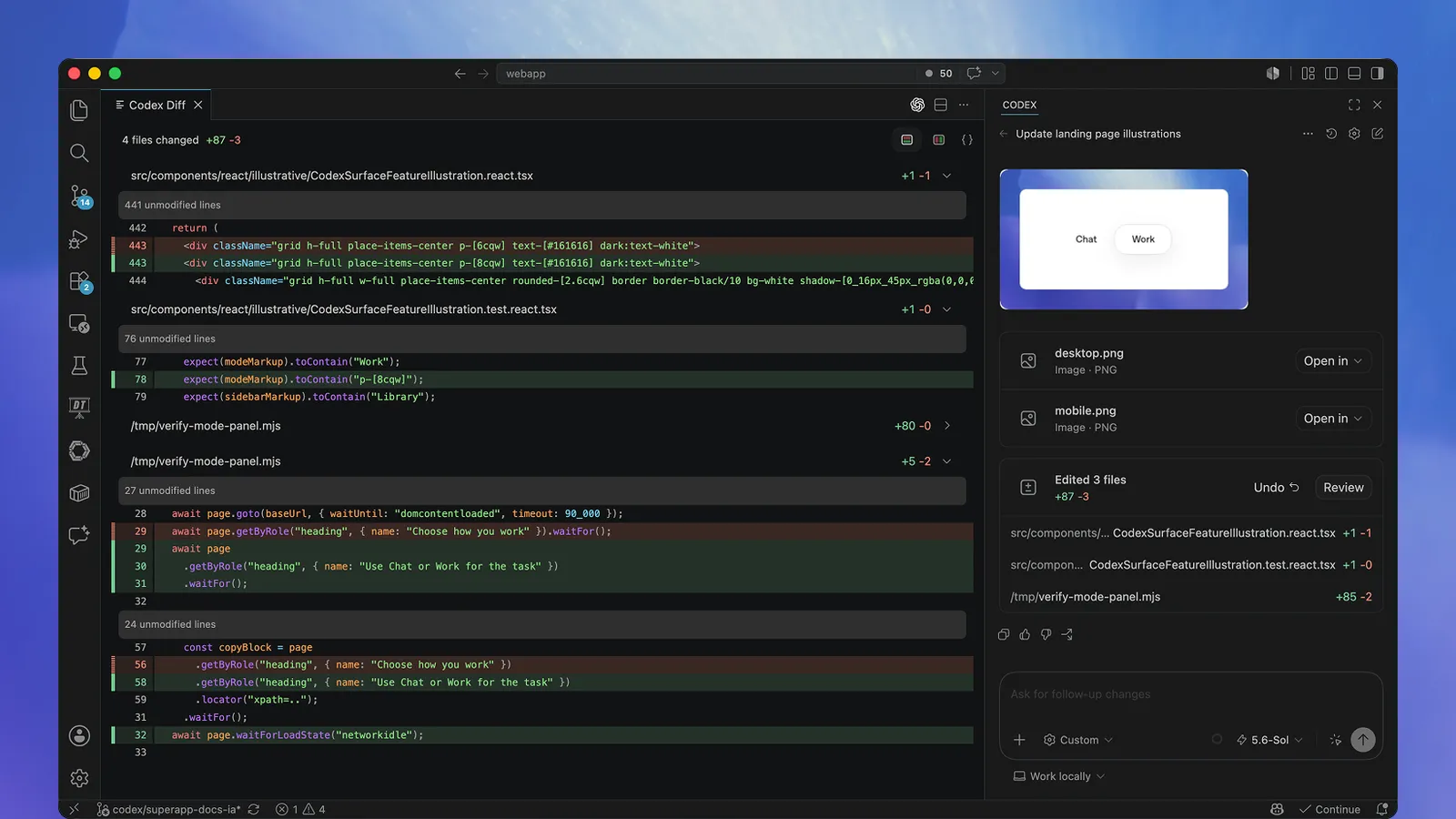
Optional official editor extension: inspect deletions and additions on the left and the task conclusion on the right. The Orbis profile described here is a CLI launch method; it does not mean the graphical extension will automatically use it.
Success check: Every issue in the report has evidence you can verify. After correction, A/B/C/D still appear once each. For basic and advanced commands, see the official reference.
Troubleshooting: start with the symptom
| Symptom | What to check first |
|---|---|
| codex command not found | Open a new terminal and check that the installation output showed no error |
| 401 / authentication failure | ORBIS_API_KEY in the current terminal, its HA route and whether the key is active |
| 404 / model not found | The base URL must include /v1 and model must be the exact ID |
| Configuration did not take effect | Whether you used --profile orbis and the version supports a separate configuration file |
| 429 / no credit | Orbis credit, route limits and call logs |
| Chat works but tools or follow-up conversation fail | The route's Responses streaming/tool compatibility; keep a redacted error for investigation |
| Reading-record file not found | The current directory, complete filename and save location |
| Reading works but writing does not | /permissions and the writable directory scope |
| Only a text reply, no file | Explicitly request saving and the complete output path |
Start with exercise material only, not keys or private files. The official documentation is authoritative for functionality. The teaching structure draws on DataCamp and CodexOne without adopting outdated installation prerequisites or permission names.