
DeepSeek Harness for beginners: installation to a first file
Install the DeepSeek Harness desktop preview or Web UI, connect a model, and turn local notes into a checklist. Learn to choose a workspace, inspect tool runs and use optional Orbis API access.
1. Meet DSH: what you will complete
Goal: install DeepSeek Harness, have it read four lines of notes and generate a new checklist, then open the result to verify it.
DeepSeek Harness, or DSH, is DeepSeek's agent workspace. It connects models, reads and writes files, and uses tools. Remember two terms: a workspace is the folder used for the current work, and a session is a conversation around a task.
The route: install → connect a model through an official route → optionally add Orbis → choose a folder → give it a task. Use a separate exercise folder with this preview release and keep backups of important material.
2. Download and install: choose one route
1. Recommended: install the official desktop app
- Open the DeepSeek Harness website and expand the download button.
- Choose the appropriate installer: Windows 64-bit or macOS for Apple silicon.
- Run the downloaded installer, follow its prompts, then open the app.
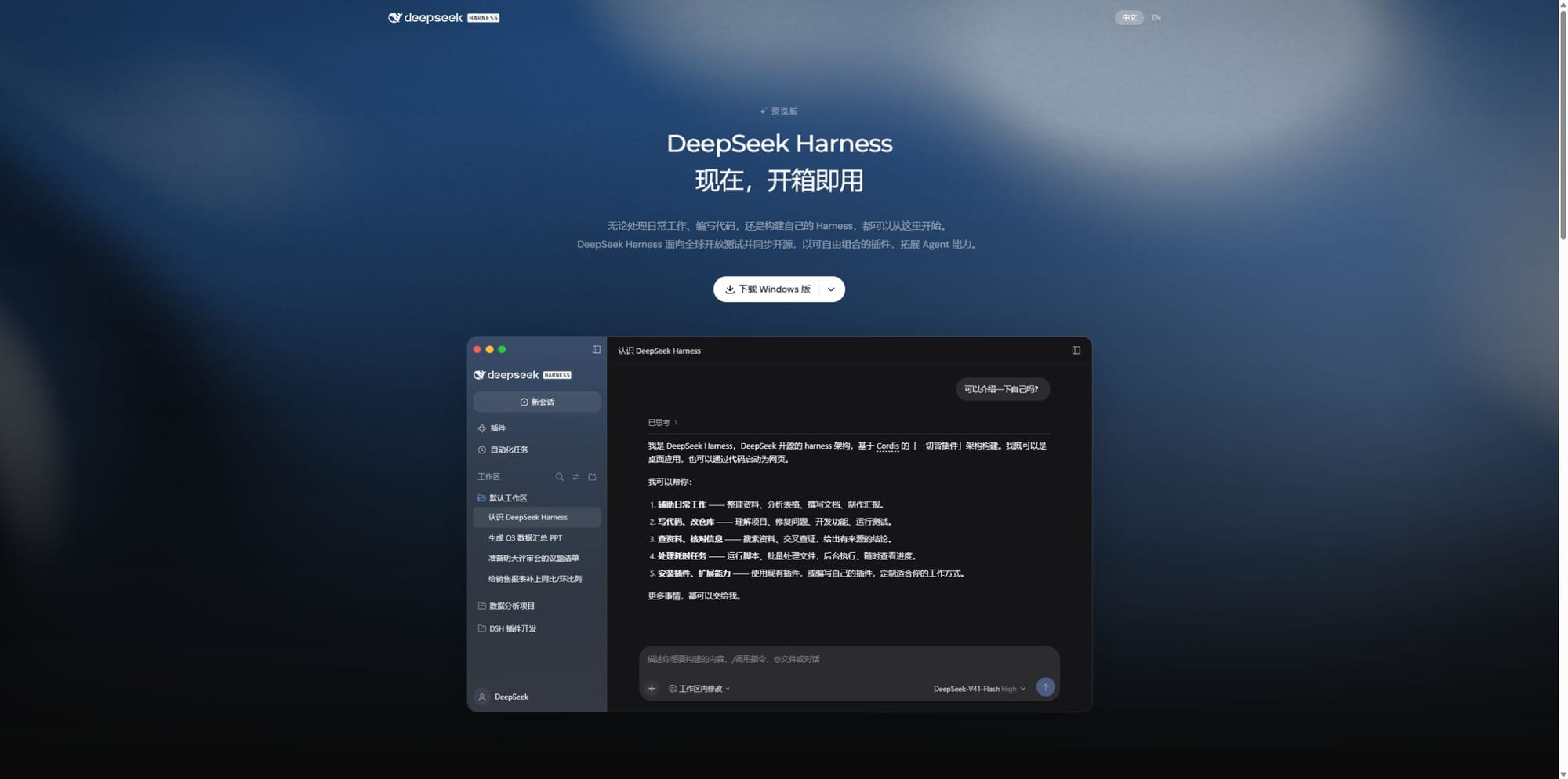
Look at the download button in the middle of the page. The arrow on its right selects an operating system. This is an actual screenshot of the official website.
Success check: the app opens and shows session and workspace entry points. If unsure about a Mac's chip, check About This Mac in the Apple menu. If there is no suitable installer, use the route below.
2. Optional: start the Web UI with one command
The Web UI is a browser interface, but the program still runs on your computer. Skip this if the desktop app is already installed.
- From the Node.js website, install a runtime that meets DSH's requirements: Node 22 starting with 22.19.0, or version 24.0.0 and later.
- On Windows, search for PowerShell; on a Mac, open Terminal. Enter each line and press Enter:
node --version
npm --version
npx @deepseek-ai/dsh web
- The first two lines should show version numbers. For the third line's initial download, check the package name before proceeding, then open the complete address printed in the terminal.
Success check: the DSH interface appears in the browser. Keep the terminal open. Closing it or pressing Ctrl+C stops the service.
3. A one-sentence installation task for an agent
Paste this into the chat of an agent that can already operate your computer, rather than into a terminal:
Use https://www.deepseek.com/harness/ to check my system and chip, then help install the compatible official desktop app. If no suitable installer exists, follow the official Node.js requirements and start it with npx @deepseek-ai/dsh web. Preserve existing settings and verify that the interface opens. I will handle sign-in and keys.
Success check: it reports the installation route and can open the interface. If you do not already have an agent, follow the first two steps manually.
3. Connect a model through an official route first
4. Use a DeepSeek official account or API
- If the desktop app offers account sign-in, follow the prompts and select a model available to that account.
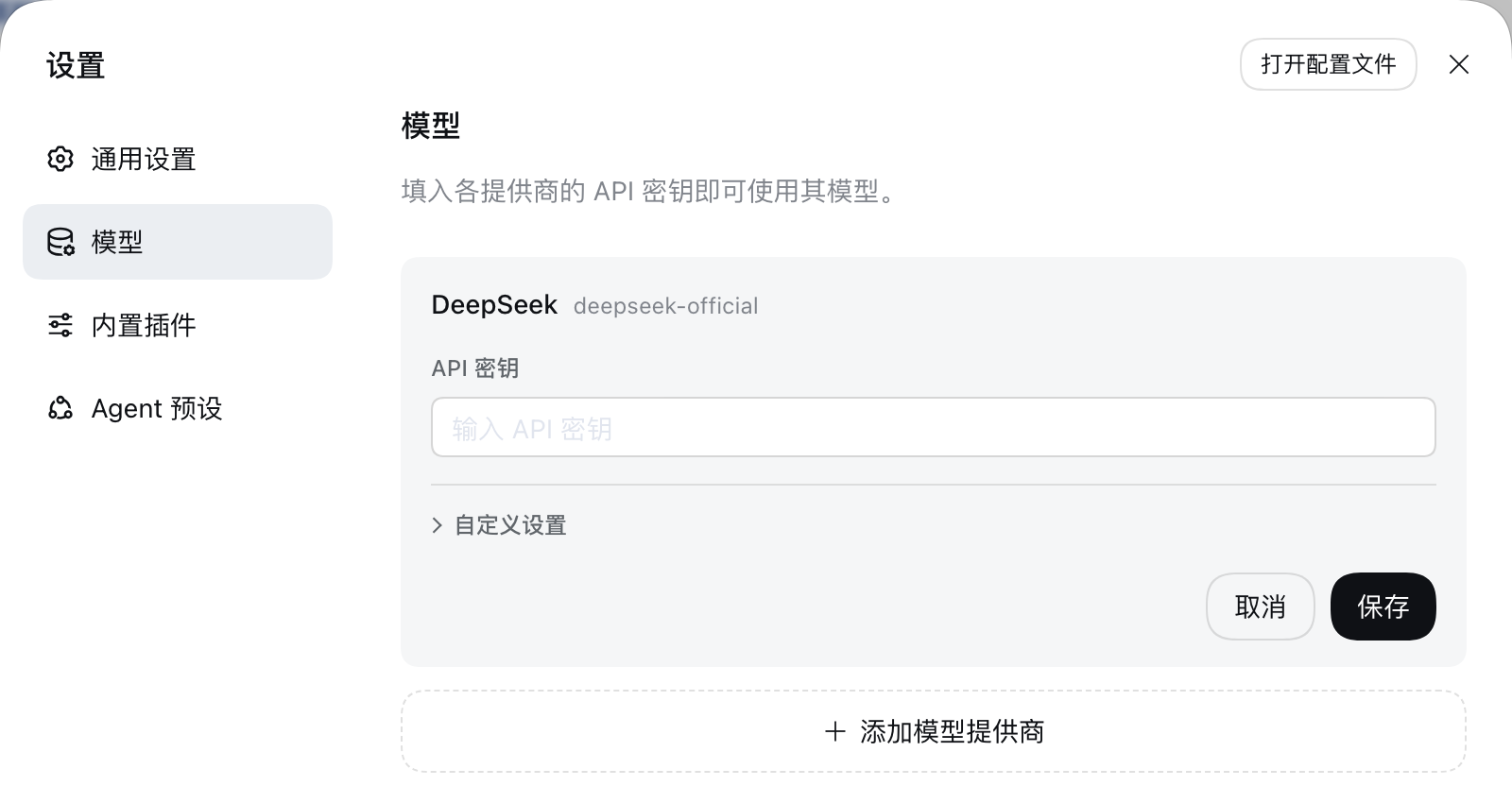
- For official API access, obtain your own API key from the DeepSeek platform, then enter and save it under Settings → Models → DeepSeek in Harness.
- Start a session, select the official model you configured, and send "Reply only: connection successful." Account access and API credit depend on what the relevant platform shows.
Success check: You can select the model in the session and receive a reply. An API key is a credential for model calls, not a website password. You do not need to configure both methods.
Once official access works, skip to "Prepare the material and select a workspace." To use Orbis, add a provider in the next two steps.
4. Optional: use the Orbis API
5. Prepare an Orbis key
- Open the DeepSeek V4.1 Flash model details and select DeepSeek · Official route.
- Click Get Key, sign in to Orbis, and follow the page's flow to create and copy a key. Then view Quick integration.
- Check that the model ID is
deepseek-v4.1-flash. Enter the key only into the software's API Key field.
Success check: you have a key for that route and the address and model ID shown on the integration page. Keys are route-bound. Changing a model name alone does not switch routes automatically. Check the current page for account credit, billing and availability.
6. Add the Orbis API in Harness
- Open Settings → Models and click Add model provider.
- Switch to Custom model API and fill in the table below. Do not put an Orbis key in the default DeepSeek official card.
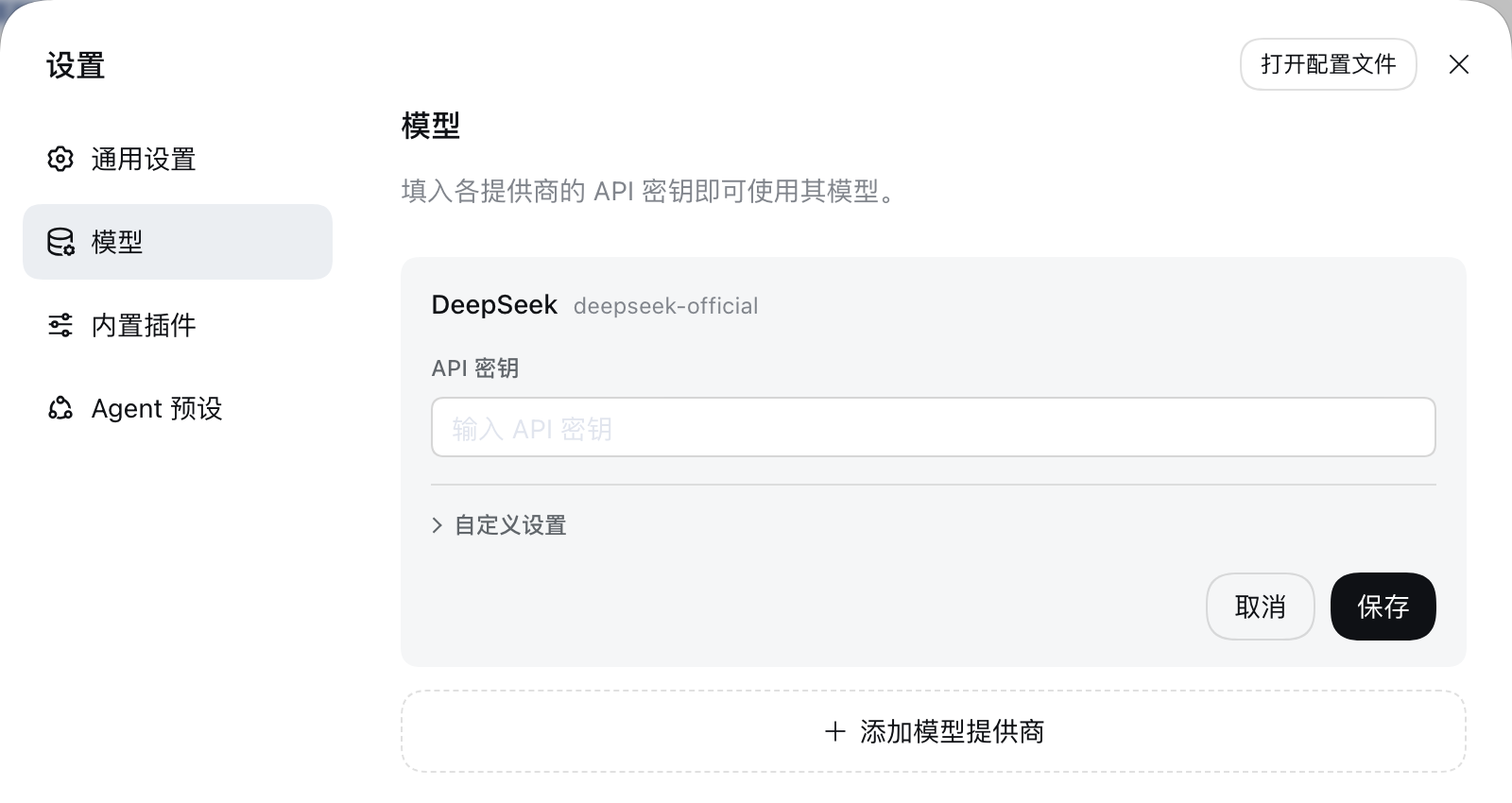
Use Add model provider below the DeepSeek card to create the new provider.
| Form field | Value used here |
|---|---|
| Provider ID | orbis, in lowercase; do not rename it casually after creation |
| Display name | Orbis |
| Base URL / API address | https://api.orbiorbi.com/v1 |
| API protocol | OpenAI Chat Completions |
| API key | The Orbis key you just obtained |
| Model ID | deepseek-v4.1-flash |
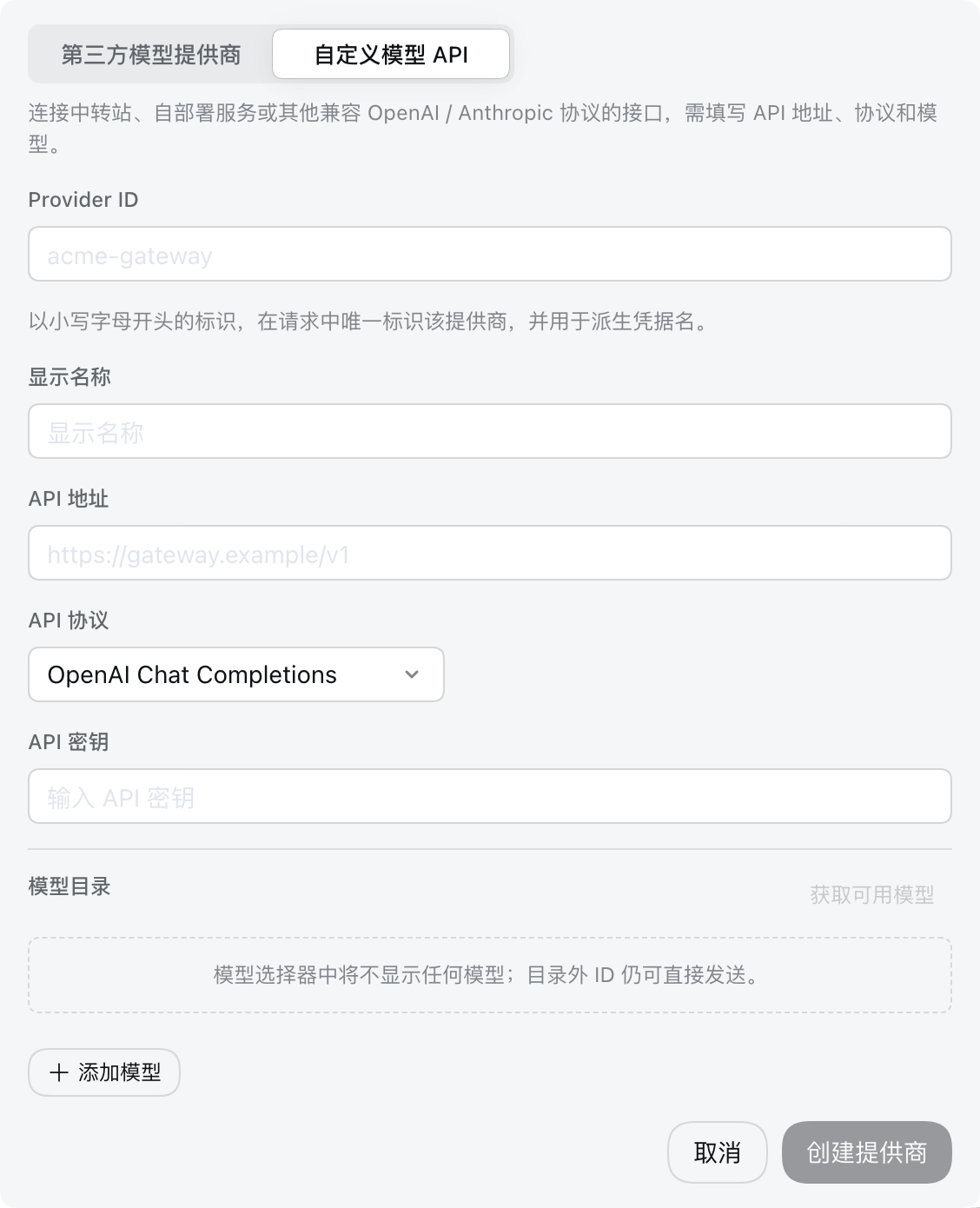
Check API address, API protocol and the model catalog. Enter the base path without appending /chat/completions.
- Add the model ID manually and save, then select that model under Orbis in a new session's model selector. You can also use Fetch available models; manual entry remains an option if the list is empty.
Success check: the model is selectable in a new session. This proves only that settings were saved. Use the read-and-write exercise below to test connectivity and tool use.
5. First use: complete a checklist
7. Prepare the material and select a workspace
- Create a folder on the desktop named
DSH练习. - Use Notepad or a plain-text editor to save
本周笔记.txtwith the following content:
The introduction on the website homepage has been updated; its mobile display still needs checking on Friday.
Three old articles need organizing next week, but the exact completion date has not been decided.
The book-club registration form has been checked and duplicate registrations marked.
Work on illustrations for the next sharing session has not begun, and the person responsible has not been decided.
- Return to DSH, add and select this workspace, then start a session.
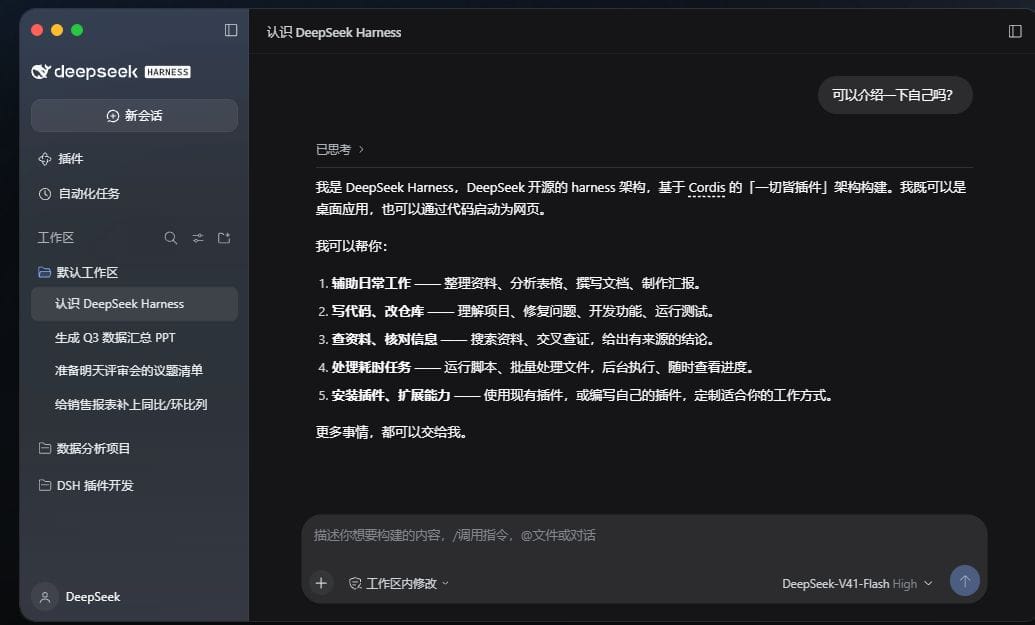
Look at Workspace and New session on the left. This is an official website preview; use the buttons actually available in your client.
Success check: the current workspace is DSH练习 and the input area is available.
8. Read first, then generate the file
First send:
Read only 本周笔记.txt in the current workspace and restate the four items. Do not modify the file.
Success check: all four items match the source. Then continue in the same session:
Organize the items into Completed, To do and To confirm, and save them as 待办清单.md in the current directory. Preserve the source file. Mark unspecified owners and deadlines as Not specified; do not infer them.
When a permission prompt appears, first confirm that the path is the exercise directory. .md is a text format that Notepad can open too.
Success check: the directory contains 待办清单.md.
9. Open the file and verify the result
- None of the four items should be missing, and the source file must not be overwritten.
- The homepage introduction was updated, but its mobile display still needs checking. Do not mark the whole item as complete.
- Do not fill in dates or owners that have not been decided.
If something is missing, say in the original session: "Separate the homepage update from the mobile-display check. Edit only the checklist."
Success check: the file passes all three checks above.
6. Basics: ask follow-ups and inspect the work
10. Name the file and limit the edit
- Continue the same session and specify the filename rather than merely saying "Change it."
- Copy the following request for a targeted edit.
Read 待办清单.md and change only the To do section into a checklist with checkboxes.
Keep the text in Completed and To confirm; do not rewrite other files.
When finished, list where changes were made.
Success check: only the to-do list changes, with no new dates or owners. Keep revisions to the same output in its original session. Start a new session for unrelated material.
11. Inspect traces to locate a problem
- Expand this run's execution log and inspect the inputs and outputs of the read and write tools.
- Compare file paths. Correct the path if the wrong file was read; if the file was read correctly but classified incorrectly, quote the source sentence to explain.
- If the same step keeps failing, stop the run and narrow it to reading a single file only.
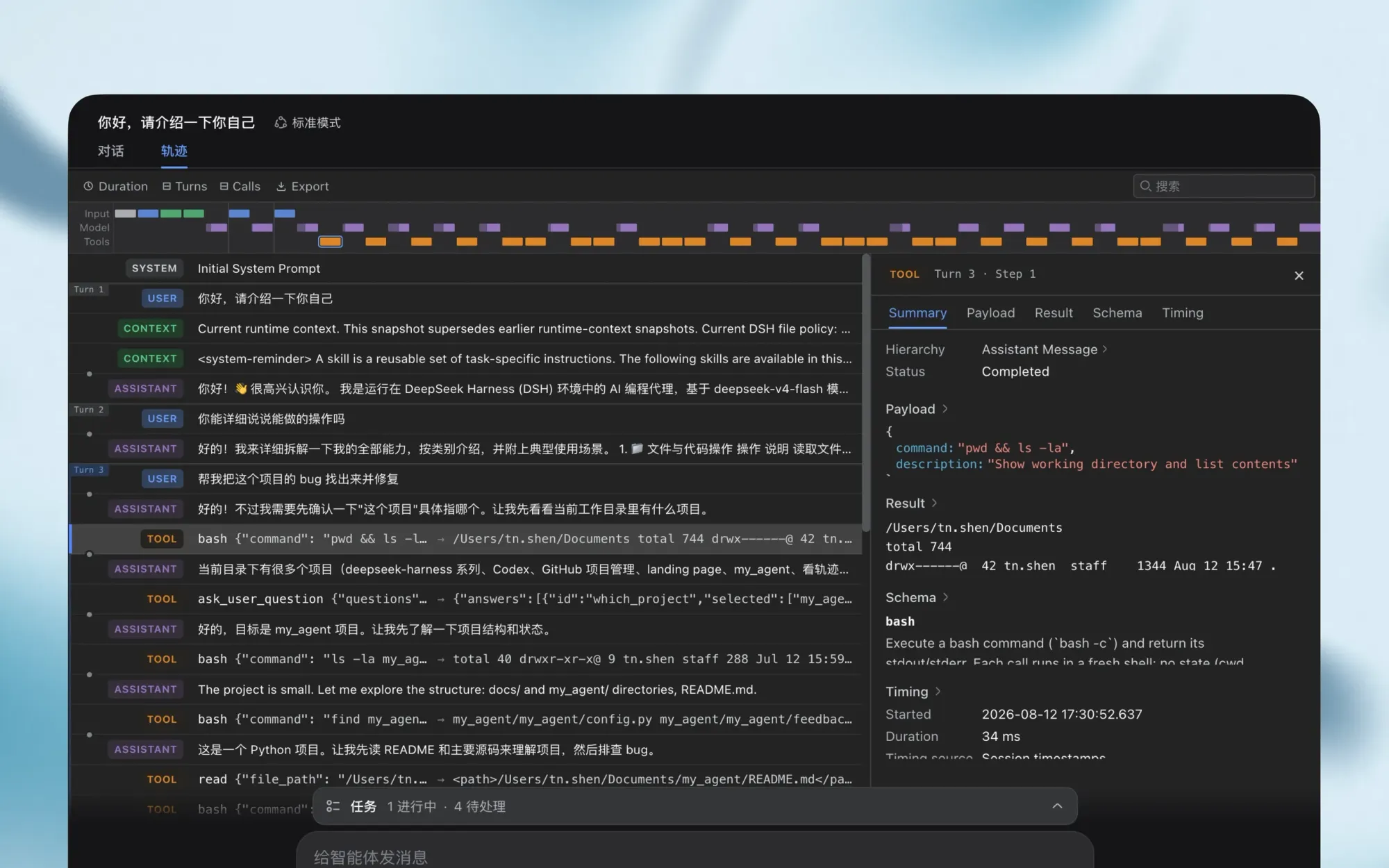
Read the filenames and returned results in tool logs, not just the final claim that work is complete.
Success check: you can identify what this run read and wrote, and whether an error occurred.
7. Beyond the basics: make a reusable workflow
12. Plan before working across files
- Add
补充说明.txtto the exercise folder and write: "Xiaolin is responsible for the mobile-display check; the deadline for organizing old articles is still undecided." - Send the planning request below before allowing file writes.
First read 本周笔记.txt and 补充说明.txt. List which information can be merged and which needs confirmation.
Give me an organization plan of no more than four steps and wait for my approval before writing a file.
- Check that it has not assigned every task to Xiaolin, then reply: "Follow the plan and create 待办清单-v2.md. Preserve the old version."
Success check: Xiaolin is assigned only to the mobile check, the old-article deadline remains unspecified, and the old checklist still exists. This uses natural language to agree on execution order rather than relying on an unverified Plan mode button.
13. Reuse requirements through a rules file
Ask it to create 整理规则.txt with the content below. In future sessions, ask it to read the rules before reading the source material.
Use the categories Completed, To do and To confirm.
Separate completed and unfinished parts within the same note.
Mark missing owners or dates as Not specified; do not guess.
Write a new output file without overwriting the source material.
Success check: the categories stay consistent with a different set of notes. This is an ordinary reference file that must be explicitly read, not a system rules file the software automatically loads.
14. Add a plugin only when a capability is missing
- Open the plugin list, inspect existing capabilities, and check whether a tool is actually missing.
- If you need one, click Add plugin and check its source, dependencies, and the folders or services it can access.
- After adding it, test one function using only the exercise directory. If it misbehaves, disable it in the list and check that the original workflow still runs.
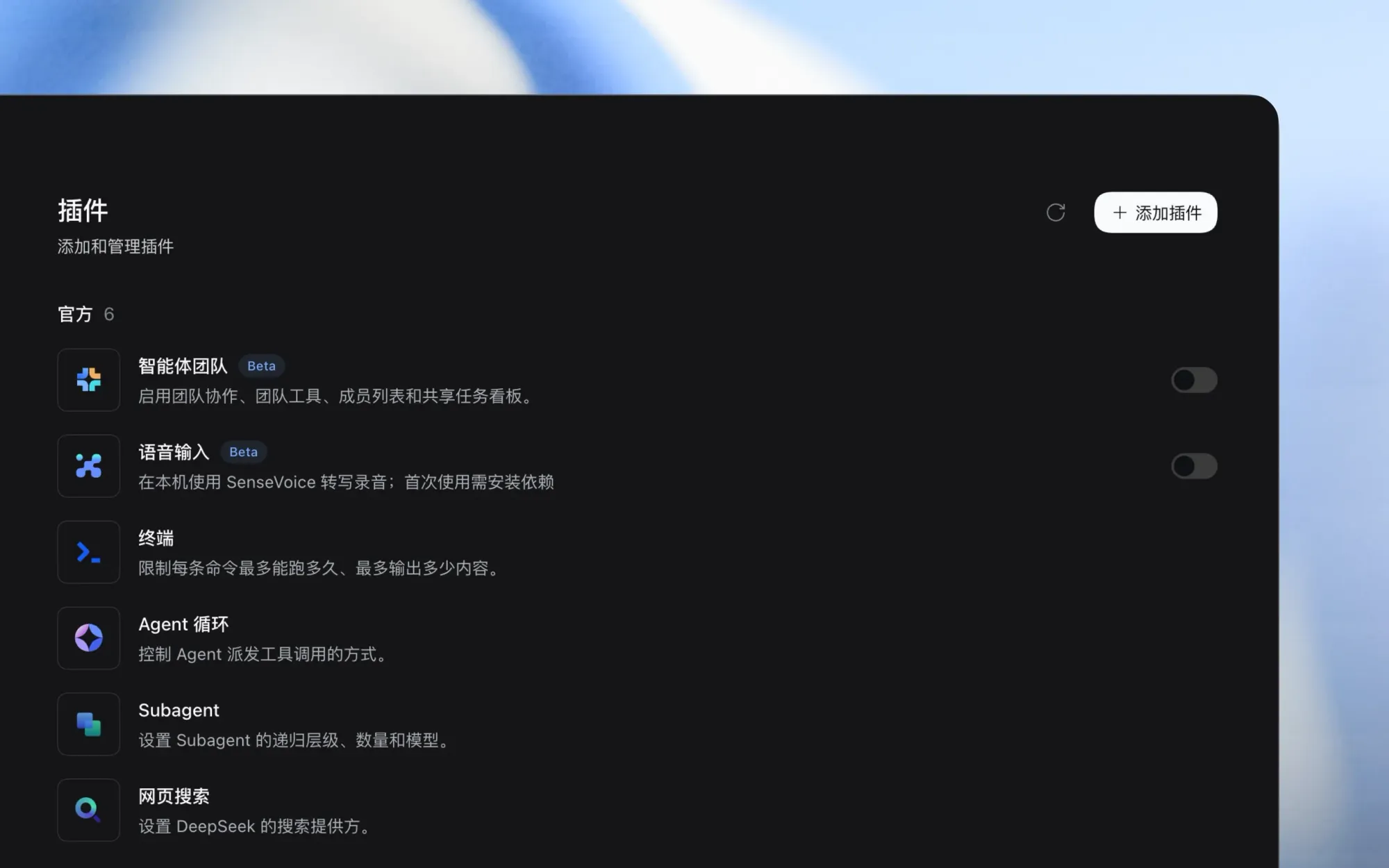
Look for Add plugin at the upper right and the toggle on each row. Plugins add tools to the workspace; they do not make the model itself more intelligent.
Success check: you know what the added tool does and can disable it. The notes exercise in this guide needs no extra plugin.
15. Verify again with a small file of your own
- Copy a short note without sensitive information into the exercise directory and name it
我的笔记.txt. - Ask: "Read only 我的笔记.txt, quote two sentences from it, then list the to-dos. Do not write a file this time."
- Open the source yourself to check the quotations and look for an actual read record.
Success check: the quotations match the source word for word, with no invented content or changes to the source file. Only then try real work material. Do not use API keys or account files as test inputs.
8. Troubleshooting: start here
| Symptom | What to check first |
|---|---|
| node/npm not recognized | Reopen the terminal after installing Node.js |
| The web page will not open | Whether the startup process is still running and the address came from its terminal output |
| The input area is gray | Whether both a workspace and model are selected |
| MISSING_CREDENTIAL / 401 | Whether a valid key for the corresponding Orbis route was entered in full |
| 404 / endpoint not found | Whether the base address ends in /v1 and the protocol is Chat Completions |
| UNKNOWN_MODEL | Whether the model exists and its name is correct |
| A reply arrives but no file appears | Whether saving was requested and the write operation reported an error |
References
Checked on 2026-10-22.
- Official: startup instructions, first task, model configuration.
- Structural references: the community Windows tutorial for its step-by-step checkpoints, and the community quickstart for its goals and troubleshooting structure. Official documentation remains authoritative for functionality.