
Gemini Mac computer use launches with work in the background
Google has launched computer use for Gemini on Mac, letting it operate apps, read files and prepare slides in a separate background window while you keep working. The first jobs worth handing over are the repetitive steps of moving data into reports.
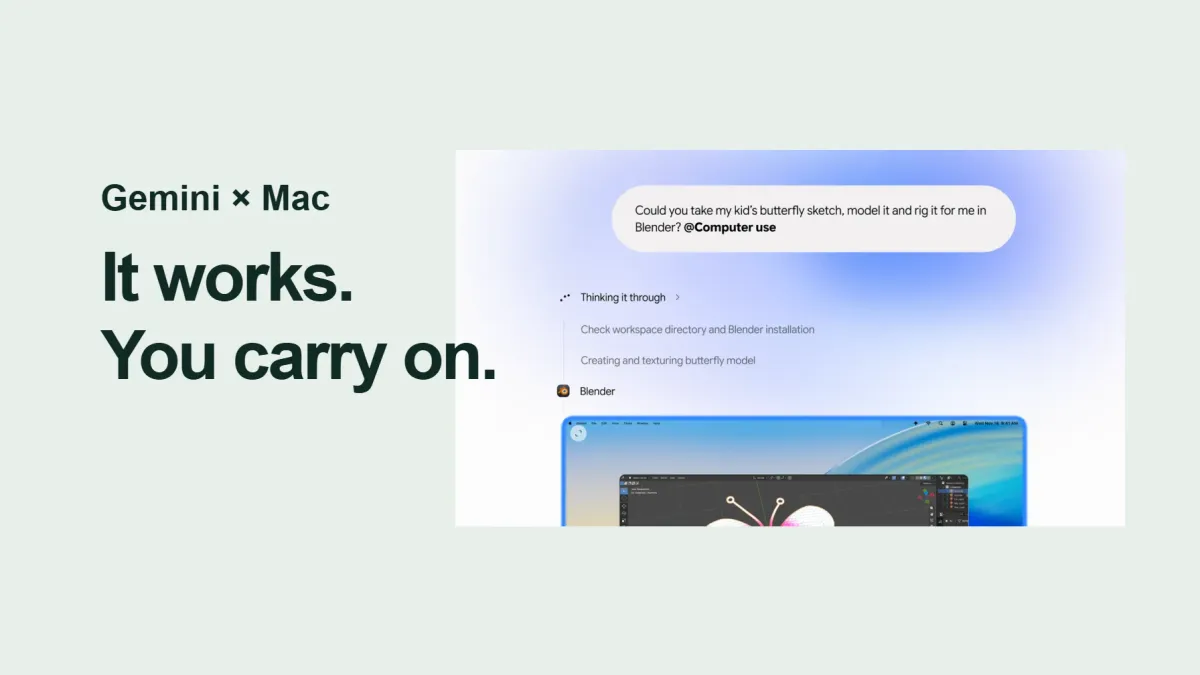
On November 19, U.S. time, Google launched Computer use for Gemini on Mac, letting AI operate the computer in the background while users keep using their own screen and mouse. In the announcement, product manager Michael Friedman said that, with permission, Gemini can click, type and fill out forms across desktop apps, local files and websites, taking on a sequence of steps that previously needed a person at the controls.
Gemini works in a separate background window, with a live preview in chat. For people compiling reports and preparing presentations, the task I most want to try is having it gather material across apps while I keep writing the analysis.
Access is currently limited to adults in the U.S. using personal Google accounts in English, with an AI Plus, Pro or Ultra subscription and an Apple Silicon Mac. Work and school accounts are outside this rollout. If you qualify, a clearly defined piece of preparation work is worth trying first, to see whether it can handle the steps you repeat every day.
Gemini Mac computer use: the tedious work between dashboards and slides
One scenario Google demonstrated has Gemini check live dashboards for multiple regions, then organize the data and screenshots in Google Slides. The task is familiar: you are preparing a report, the information is scattered across different pages, and it all needs to end up in one presentation.
Anyone who has done this knows the back-and-forth. Find the data for the right region, capture the screenshots you need, switch to the presentation, find the right place, insert them, then return to the dashboard. None of the steps is difficult, but as the regions and pages multiply, someone has to stay at the controls. Gemini's computer use targets this stretch of the work: following the task instructions to gather material across several apps.
The background window makes this division of labor more appealing. When AI takes over the mouse, people often have to wait for it to finish. Now, users can have it prepare material while they keep writing the analysis for their report.
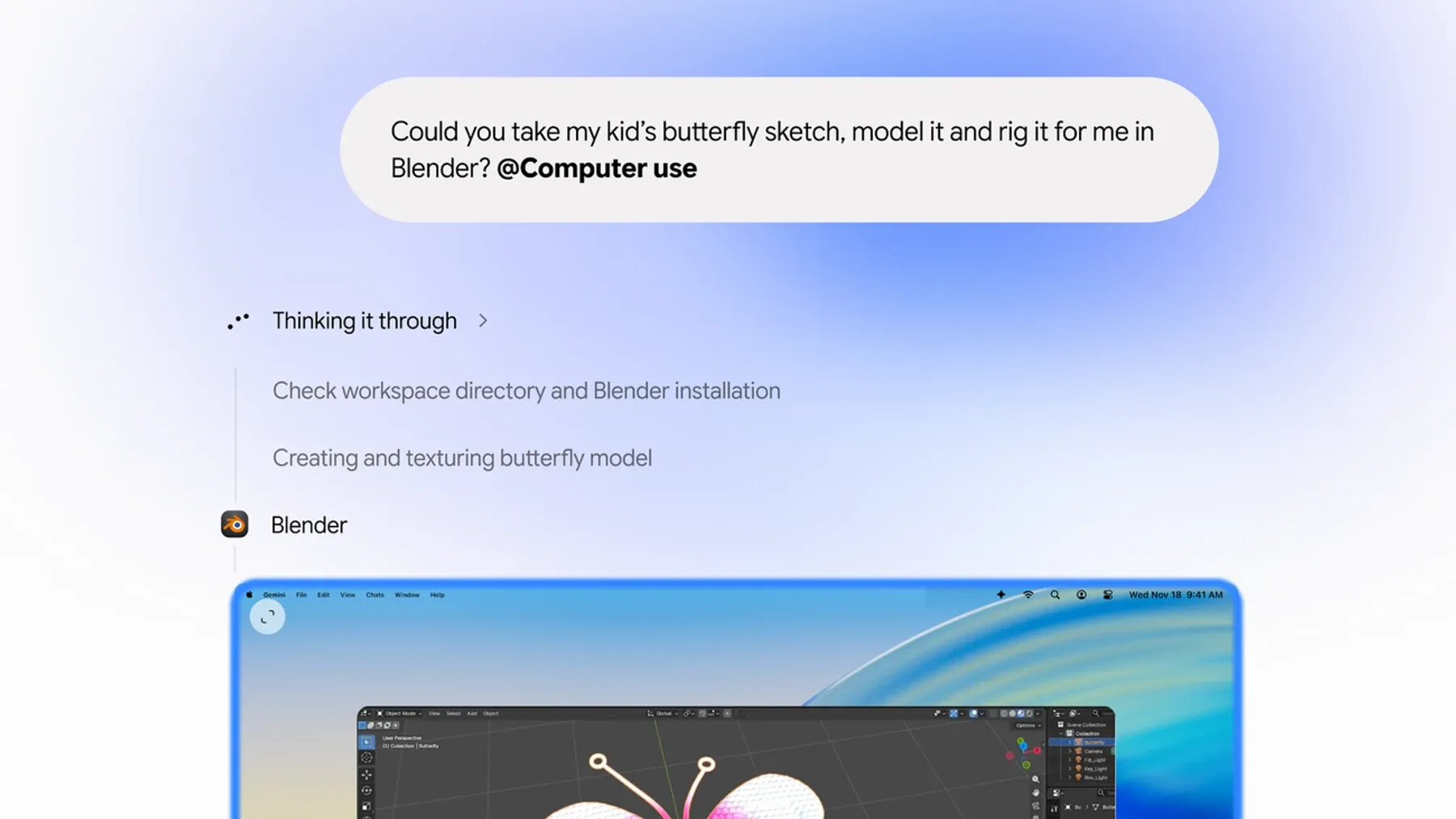
Google's preview of a Blender task. Source: Google
Another official illustration from Google shows a more imaginative task: turning a child's butterfly sketch into a 3D model in Blender and setting up controls that let parts of the model move. The chat lists steps such as checking the Blender installation, creating the model and adding textures, followed by a preview of the app. A process that would normally require switching to the software to check is brought into the same chat window.
Free to download, with conditions for computer use
To find the new feature, first check your device and account. In addition to the region, language and subscription requirements above, users must be at least 18 and running macOS Sequoia 15.0 or later. Intel Macs are outside the support announced for this release. The Mac help page also lists a minimum of 8GB of memory and 200MB of installation space. Existing users can check for updates through the app's menu.
One distinction is easy to miss: the Mac app itself is free to download, but the new computer use feature requires an eligible subscription. The same app also has a feature called Tasks for multistep work such as organizing files. Tasks is available to free users in six countries, including the U.S.; the new computer use feature remains subject to the conditions in this announcement.
The difference lies in how they work. The existing Tasks feature can access files in folders users add to Connected folders, then edit and organize those files. Computer use extends that reach to the interfaces of desktop apps. After reading dimensions from a PDF, for example, it can enter them into the corresponding fields on a quote website, connecting the steps between a file and a web page.
For the first assignment, define the starting point and the finish
Another use Google demonstrated is extracting weight, dimensions and addresses from a local PDF to fill out a shipping quote form. Like the dashboard-to-slides task, the information already exists and its destination is clear. The tedious part is moving it across.
When assigning the task, you could follow that sequence directly: “Extract the weight, dimensions and address from the PDF I specify, enter them in this shipping quote form, then stop and let me review it.” Once you have the form, you can check the three fields against the original file and decide whether to continue.
During execution, users can choose which apps Gemini may access, watch progress live and pause the task. Google says critical actions require user approval before they are carried out. That makes a clear handoff point useful when assigning work: have it produce a draft or fill in the material, review it yourself, then confirm any subsequent external actions.
If you already qualify for access, I would start by handing over data and screenshot collection for the next report, while keeping responsibility for the analysis and conclusions. The result I most want to see is specific: by the time I finish the analysis, the supporting material is already arranged in the presentation, instead of leaving me to start taking screenshots across all those pages.