
Signal blocks screenshots to stop AI assistants reading chats
Signal blocks phone AI assistants from reading chats and also prevents ordinary screenshots. iPhone users can pause protection for ten minutes; Android enables it when screen reading is detected. Your settings cannot control an assistant on the other person's phone.
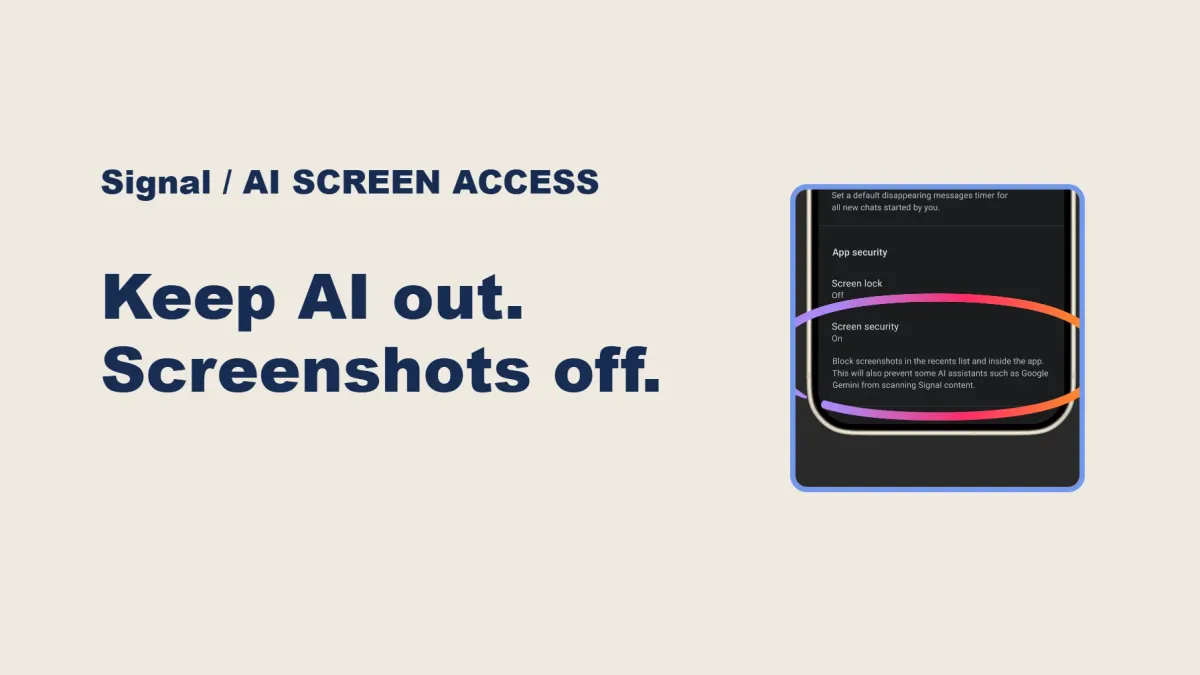
On November 20, Signal announced measures to stop AI assistants built into phone operating systems from capturing chat screens. After updating over the weekend, some users encountered a more immediate change: they could no longer take screenshots of chats.
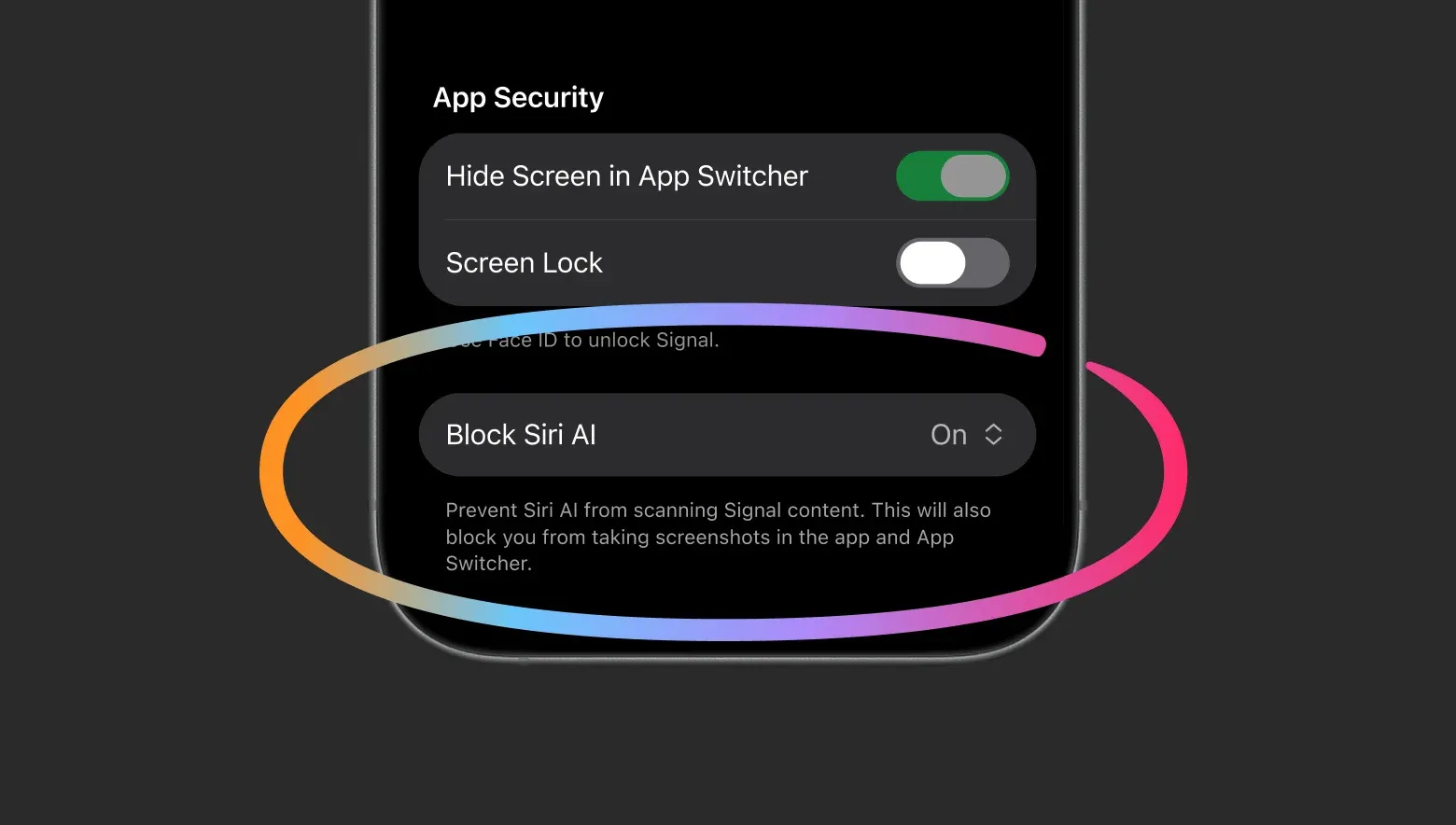
The restriction targets assistants such as Siri AI and Gemini that can see what is on screen. To keep them out of private conversations, Signal also blocks users' own screenshots. On iPhone, users can turn protection off for ten minutes when they need to capture something.
We support keeping protection on by default and allowing access temporarily when needed. Once a system assistant has permission to read the screen, the content it receives in a conversation between two people includes messages from the other participant. Even if you never use AI, the other person's assistant can access those messages through their device.
Signal's screen protection cannot control the other end of a chat
In Reddit's Signal community, user fommuz asked an easily misunderstood question: if I turn on protection, does that stop the other person from taking screenshots too? Replies pointed out that the restriction applies to your own device. Signal's support documentation also explicitly says that screen security does not prevent other people from taking screenshots on their own devices.
In the same thread, just-dig-it-now said that pressing the side button on an Android phone to summon Gemini brought up a message saying it could not read the screen. That is exactly the action the new protection is designed to block: the assistant tries to look at the chat, and the app shields the screen first.
Once a message reaches another phone, however, access permissions are controlled by that phone's user. Commenters on Hacker News also pointed out that the other participant in a chat has always been able to disclose messages, deliberately or accidentally.
Sending someone a screenshot of a conversation usually required a deliberate action. Once users give an assistant screen-reading access, they may not notice every conversation it reads. Permission settings therefore become something both participants need to care about.
The assistant gets the text on the screen
Signal's end-to-end encryption protects messages between sender and recipient. Once a message reaches the recipient's device, it has to appear as text so a person can read it. An assistant with permission to read the device's screen can access the content at that point too.
A report by Reuters journalist Katie Paul provides a concrete example: in testing, Meta's Muse read Signal messages using system permissions the user had granted during initial setup. On Mac, it used accessibility and screenshot tools to open chats, capture the screen and extract text from the images. An Apple update that week closed the route used in the Muse test. Signal still says, however, that apps cannot reliably block screenshots on macOS. Even after that specific access route was patched, users still need to exclude Signal in Siri; the settings path is below.
Meta said agents need to see and operate computers to carry out tasks for users, and that access to other apps depends on permissions explicitly granted by the user. In a discussion on Reddit's degoogle community, commenters also stressed that Android already displays prompts for notification and accessibility permissions. The dispute concerns what those permissions allow an assistant to see.
Screen reading does have uses. Google's Gemini help documentation explains that users can provide the current page or a screenshot as context for a question, and that the relevant screen actions upload information. When introducing Siri AI, Apple demonstrated screen understanding by having it view a team's webpage and add home games to a calendar, while emphasizing its on-device and Private Cloud Compute privacy design.
Our view is that the convenience of letting an assistant view public webpages does not justify opening private chats by default. Users should be able to deny access app by app, rather than handing over a bundle of permissions and then guessing where an assistant will use them.
If screenshots are blocked, use temporary access first
The way protection turns on automatically differs between the two phone platforms, as do the settings paths.
iPhone: Signal 8.37 or later, with iOS 27 or later. Protection is on by default under Signal's Settings → Privacy → Block Siri AI. To take a screenshot, choose Off for 10 Minutes; protection returns automatically after ten minutes. The Options button shown when a screenshot is blocked also leads to the temporary-disable option.
Android: Signal 8.35.1 or later. The first time the app detects an AI assistant trying to read the screen, it automatically enables Screen security and explains why. To turn it on in advance, go to Settings → Privacy → App security → Screen security. Android has an on/off toggle, without the iPhone's ten-minute option.
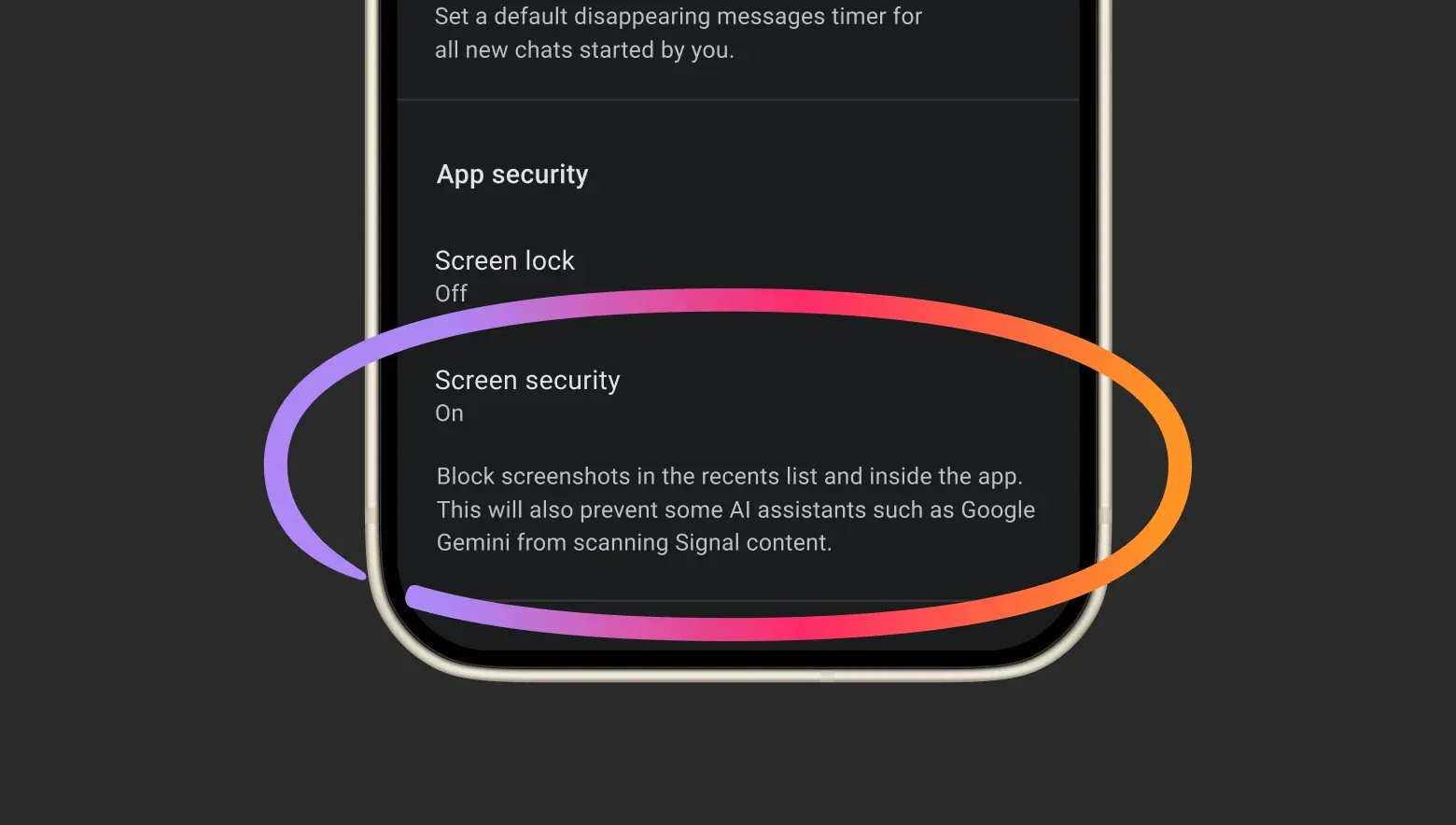
Implementations vary among Android manufacturers, and Signal says it cannot reliably detect access on every device. To protect chats in advance, check your app version and turn protection on manually.
We recommend keeping protection on for everyday use. On iPhone, pause it for ten minutes when you need a screenshot. On Android, remember to turn it back on after disabling it manually. Leaving it off to save one trip to settings leaves future chats open to being read too.
Mac users also need to exclude Signal in Siri
A phone update cannot configure your Mac. Signal currently cannot reliably block screenshots on macOS. Its advice for macOS 27 users is to add Signal under System Settings → Siri → Excluded Apps to prevent Siri AI from proactively accessing messages.
Signal on Windows 11 has blocked Recall screenshots by default since last year. The setting is in Signal Desktop under Settings → Privacy → Screen security. The official support page recommends disabling Recall, or excluding Signal within Recall, before turning protection off.
If an assistant separately has permission to read app data saved on the device, blocking screenshots will not close that route. Screen protection therefore needs to be managed alongside other access permissions. Above all, make sure the other person in a chat understands that turning protection on for yourself does not make that choice for their phone.
Signal is asking operating-system makers for clearer technical documentation and tools that let apps refuse screen reading, notification access and file access. For users, that direction is more useful than another warning to acknowledge: I can let an assistant handle my work while explicitly keeping some apps off limits.
Further reading
- Signal: new measures to protect privacy, November 20
- Signal Support: screen protection against Google Gemini and Siri AI
- Signal Support: Screen Security and Windows settings
- Katie Paul / Reuters: Signal's screenshot restrictions and Muse testing, November 20
- ITHome / Luyuan: Signal's mobile update, November 22
- Reddit Signal: discussion after screenshots were blocked on iOS
- Hacker News: Signal privacy and the other participant's permissions
- Reddit degoogle: Muse permissions and user consent
- Google: Gemini's screen actions and context
- Apple: Siri AI's screen understanding and privacy design