
WorkBuddy for beginners: install it and deliver your first file
Start with the official installer and a short set of notes. This guide walks through creating a task, choosing a workspace, saving a file and checking revisions, then introduces planning mode and skills.
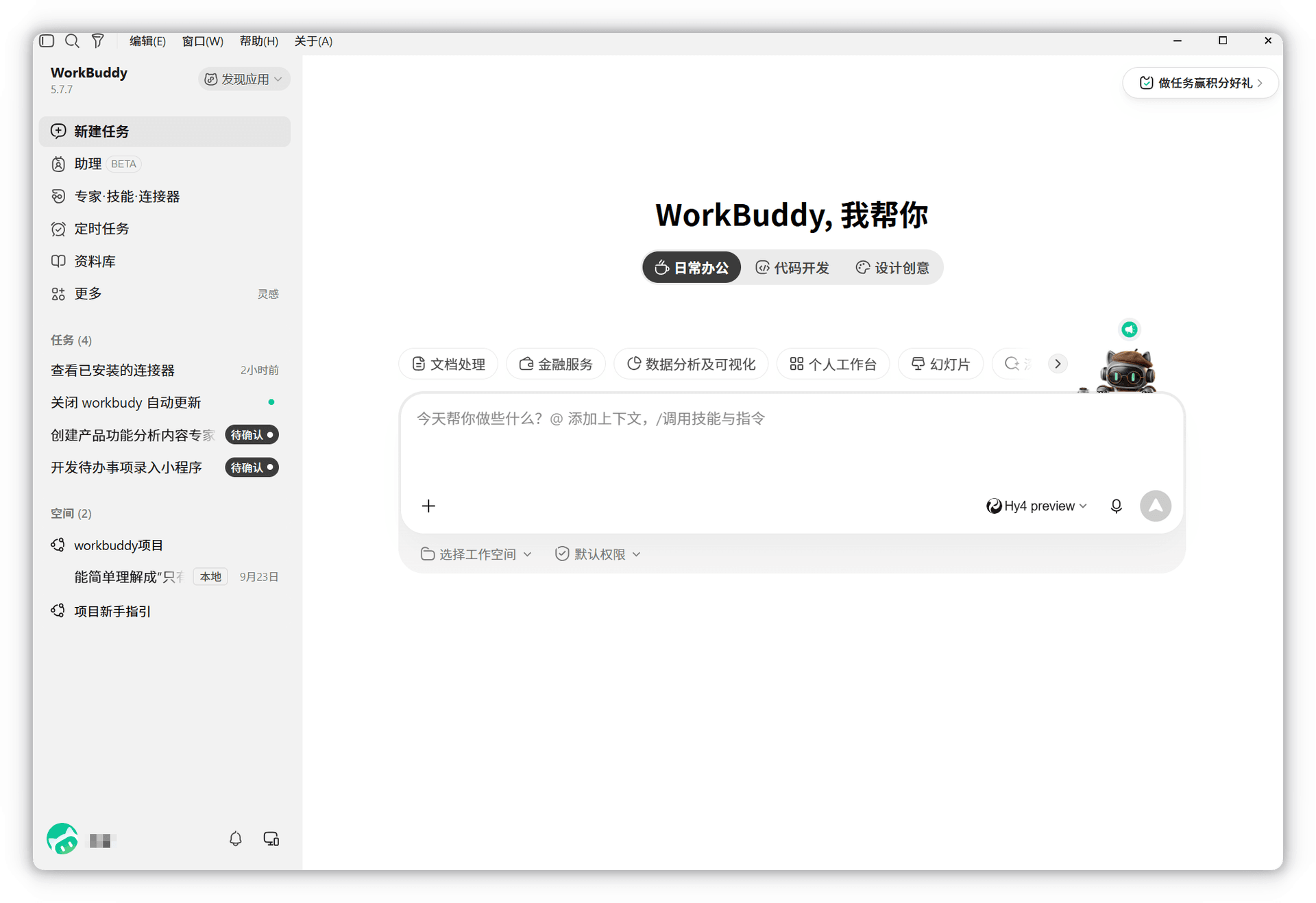
1. Get to know WorkBuddy
The goal: install WorkBuddy, sign in, turn four lines of notes into a file, find the result and revise it once.
WorkBuddy is Tencent's desktop AI agent. Give it a task and it can read materials, call tools and save files. Start with three terms: a task is the conversation for a piece of work, a workspace is the folder being used, and an artifact is a delivered file.
Follow this sequence: install and sign in → prepare materials → create a task → generate a file → check and revise it. You do not need to write code or install skills for this exercise.
2. Download and install
1. Choose an installer
- Open the WorkBuddy website and select Download.
- Choose the version for your computer using the table below.
- Run the downloaded installer, complete the wizard and open the app.
| Computer | Version and requirements |
|---|---|
| Windows | Windows 10 or later, x64; check current compatibility notes for ARM64 |
| Mac with Apple silicon | macOS 12 or later, ARM64 installer |
| Intel Mac | macOS 12 or later, x64 installer |
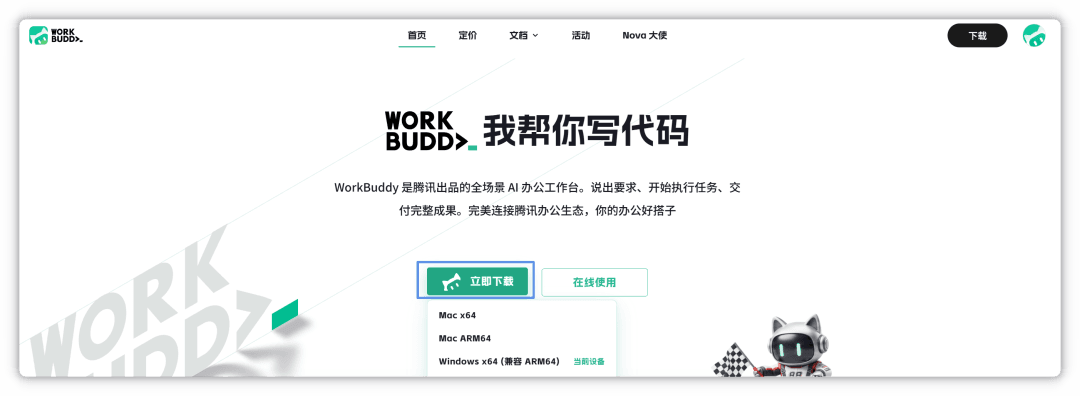
Look at the system choices below Download. On a Mac, check the chip under Apple menu → About This Mac.
Success check: WorkBuddy opens and shows a sign-in entry.
2. Optional: ask an agent to install it
If you already have an agent that can operate your computer, send it this request:
Check my operating system and chip using the official guide at https://www.workbuddy.cn/. Help me install the matching WorkBuddy desktop app, preserve existing settings and verify that it opens. Leave sign-in, payment and system permissions to me, then guide me through creating a practice workspace.
This is a task prompt, not a terminal command. Success check: the agent explains the installation result and can open the client. If you do not have such an agent, install it manually using the steps above.
3. Sign in
- Select Sign in in the client and verify your account on the official page that opens.
- For a personal account, choose the individual sign-in method, then return to the client.
- Check which models and usage allowance your account currently has.
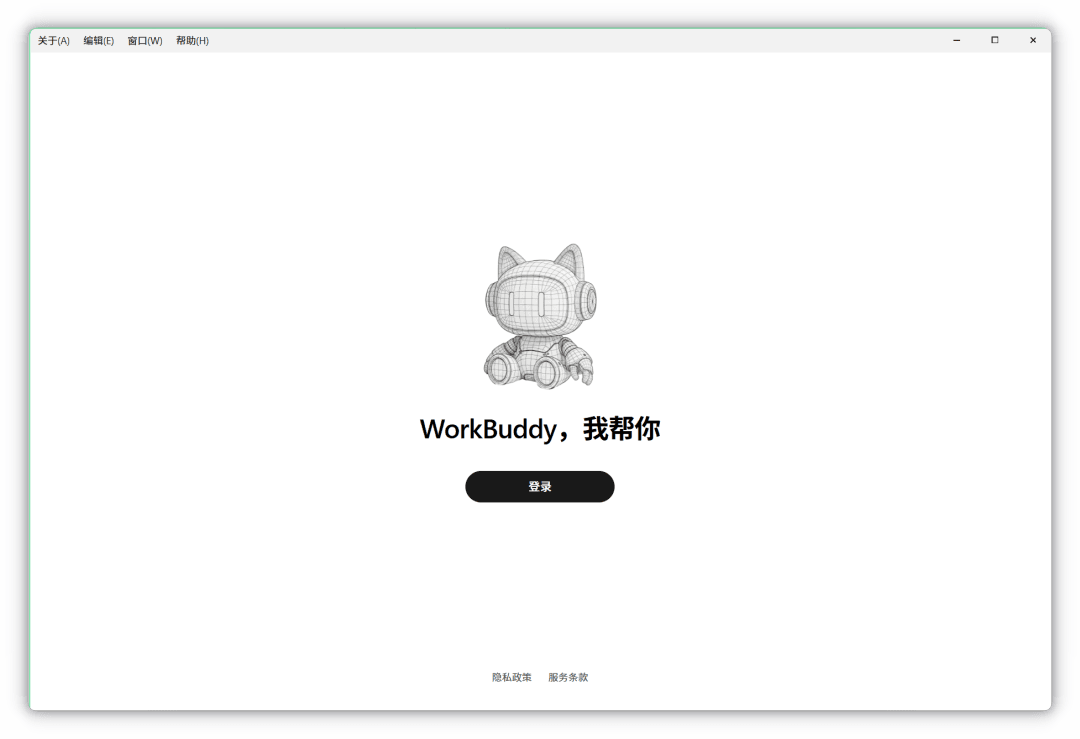
Look for Sign in in the middle of the window. After browser verification, return to the client to continue.
Success check: you can open New task. Model allowance is whatever the account page shows; a free download does not imply unlimited model usage.
4. Start with a model included in your account
- After signing in, select New task and open the model selector.
- Choose an available built-in model first and send “Reply only: connection successful.” Availability and allowance are shown in your account.
- Once it answers, you can go straight to the four-line-notes exercise below.
Success check: you can chat with an available built-in model without adding a custom provider. If you want to use an Orbis model, complete the optional setup next. Keep your WorkBuddy account signed in.
3. Optional: use the Orbis API
5. Prepare an Orbis key
- Open the DeepSeek V4.1 Flash model page and select DeepSeek · Official route.
- Select Get Key. Sign in to Orbis, follow the page's instructions to create and copy a key, then open Quick integration.
- Confirm that the model ID is
deepseek-v4.1-flash. Enter the key only in the software's API Key field.
Success check: you have a key for that route, plus the address and model ID shown on its integration page. The key is bound to a route; changing only the model name does not switch routes. Check the current page for allowance, billing and availability.
6. Add a custom model
- Return to WorkBuddy and open Settings → Models → Add model.
- Select Custom as the provider and enter the values below. An Orbis key does not replace your WorkBuddy account sign-in.
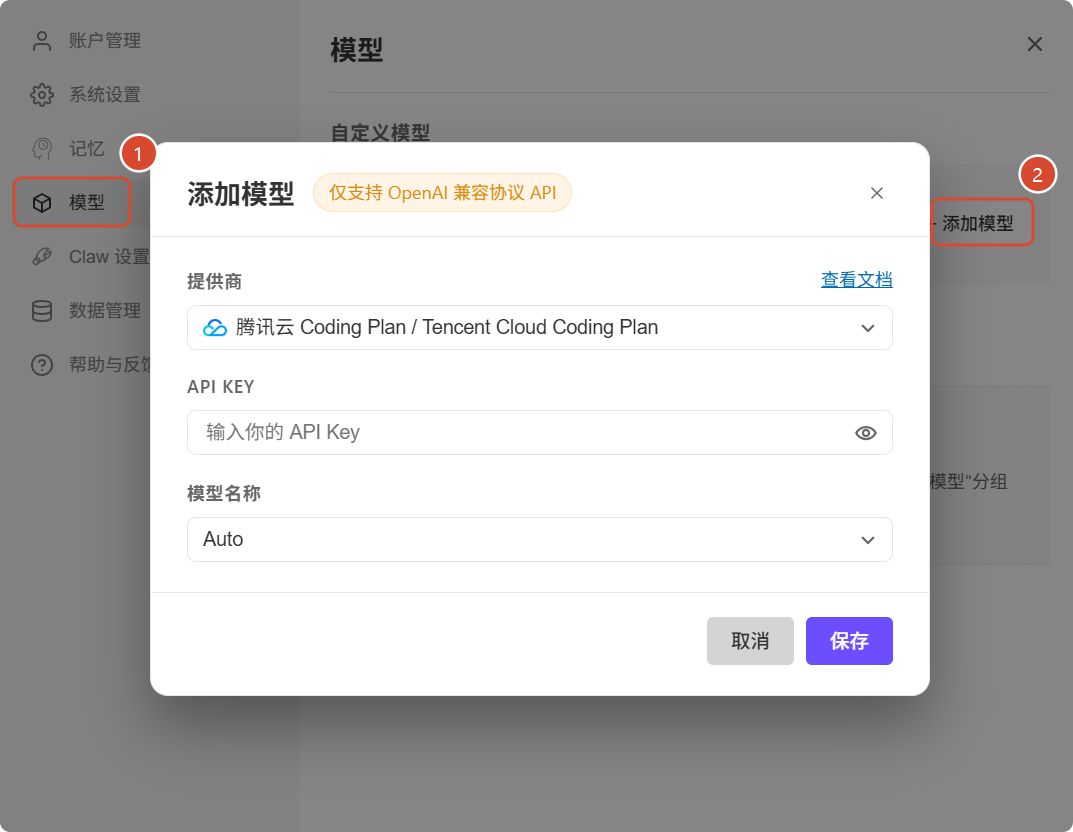
Look for labels 1, Models, and 2, Add model. The provider in the screenshot is an official example; select Custom when connecting to Orbis.
| Form field | Value for this guide |
|---|---|
| Provider | Custom |
| API endpoint | https://api.orbiorbi.com/v1/chat/completions |
| API KEY | The Orbis key obtained above |
| Model name | deepseek-v4.1-flash |
| Advanced: tool calling | Enable it, then verify it with a real file task |
| Advanced: custom protocol | Enable it to send requests to the complete URL above |
| Image input, reasoning mode, input/output limits | Leave unchanged for the first exercise; configure them later according to parameters explicitly supported by the route |
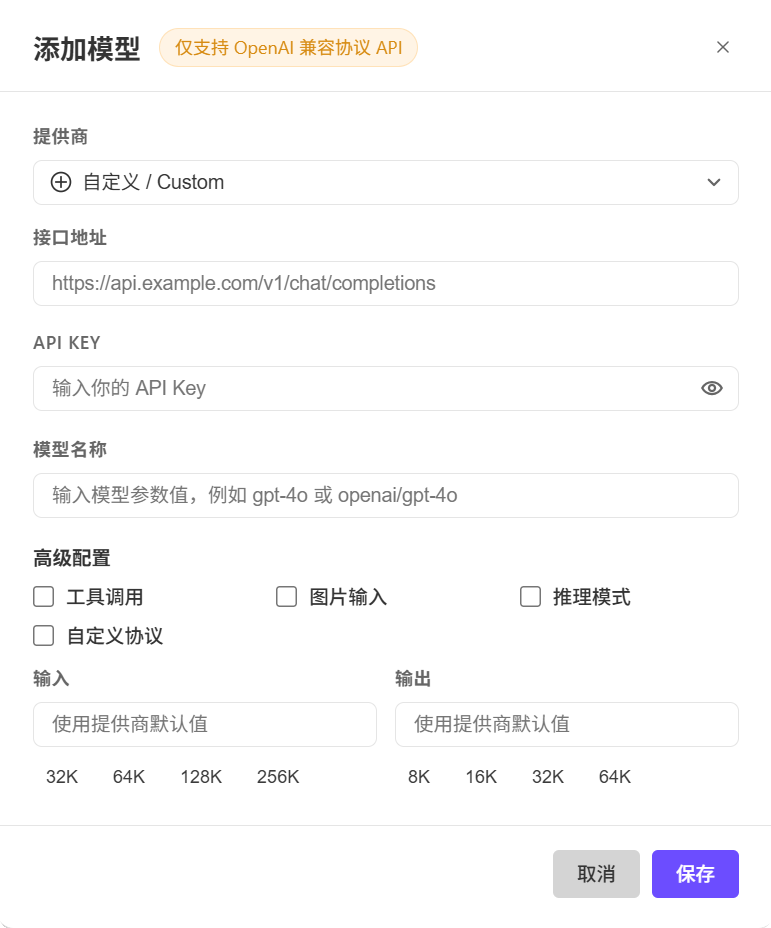
Look at API endpoint and Custom protocol. With custom protocol enabled, the address is used as entered instead of having a path appended automatically. Keep /chat/completions.
- Save, return to New task and select the model under custom models.
Success check: the model appears in the selector. Saving is not a connectivity test. The read-and-write exercise below checks whether the route can complete a task.
4. First task: turn four lines of notes into a checklist
7. Prepare the practice file
- Create a folder called
WorkBuddy练习on your desktop. - In Notepad or another plain-text editor, save the following material as
活动笔记.txt:
The venue for the sharing session is confirmed.
The registration form still needs a duplicate check, due Thursday.
The promotional poster is finished, but its headline needs another check.
The person responsible for on-site check-in has not been decided.
Success check: you can open the text file inside the folder.
8. Create a task
- In WorkBuddy, select New task on the left.
- Open the model menu. For the official-account route, choose an available built-in model; for the Orbis route, select
deepseek-v4.1-flashunder custom models.
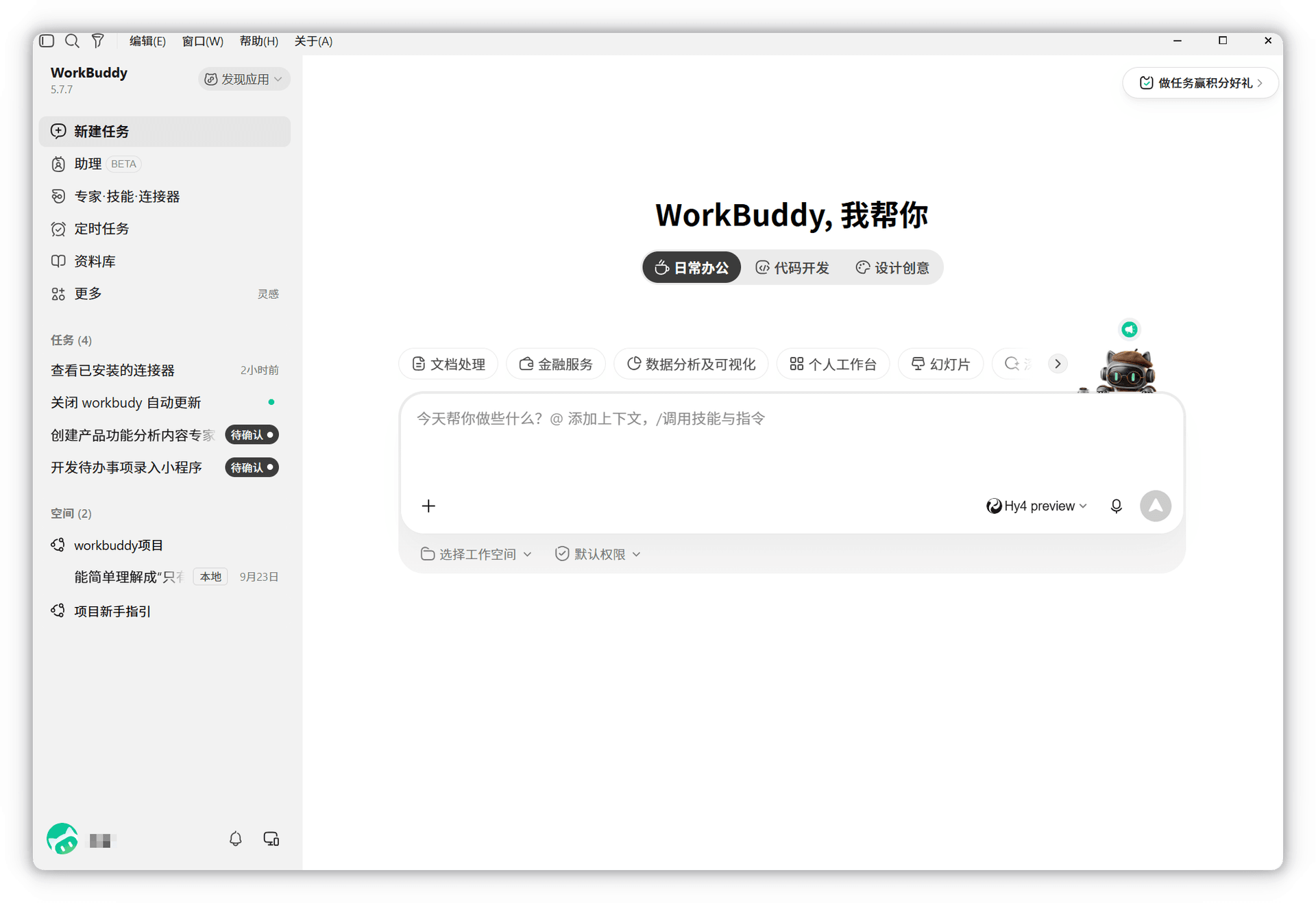
Look at New task on the left and the input box in the middle. Choose the model that matches your route.
Success check: a new task page is ready for your instructions.
9. Select a workspace
- Select Choose workspace below the input box.
- Select Open local folder and find
WorkBuddy练习on your desktop. - Check that the current directory name matches the practice folder.
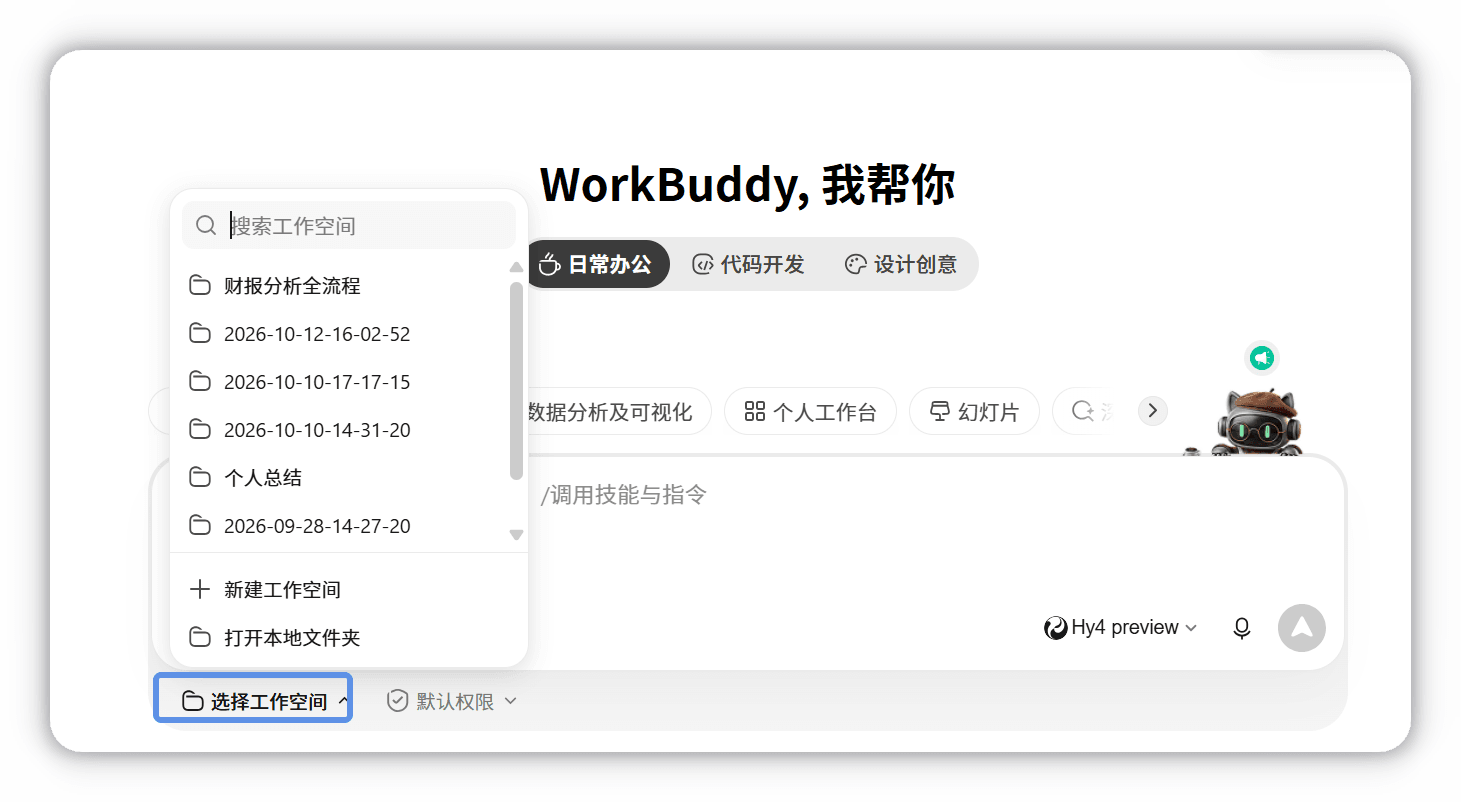
Look for Open local folder at the bottom of the menu. Choose your existing practice directory.
Success check: the task uses WorkBuddy练习, rather than your entire desktop.
10. Ask it to read first
Send this request:
Read only 活动笔记.txt in the current workspace and restate it in four short points. Do not modify files or add information that is absent from the source.Success check: all four points are correct, including that the poster is finished but its headline still needs checking. If the file cannot be found, check the workspace and actual filename first.
11. Ask it to save a file
Continue in the same task:
Organize the notes into Completed, To do and To confirm, and save them as 活动清单.md in the current folder. Preserve the original file. Mark unspecified deadlines as “not stated”; do not infer them or send messages to anyone.- Keep the default Agent mode so that it can perform file operations.
- If a permission prompt appears, check that the read/write target is the practice directory.
Success check: 活动清单.md is created. .md is a text format that can also be opened in Notepad.
12. Find and check the result
- Select the file card in the result or Artifacts on the right; you can also open the practice directory directly.
- Check the three points below. If something is wrong, revise it in the original task.
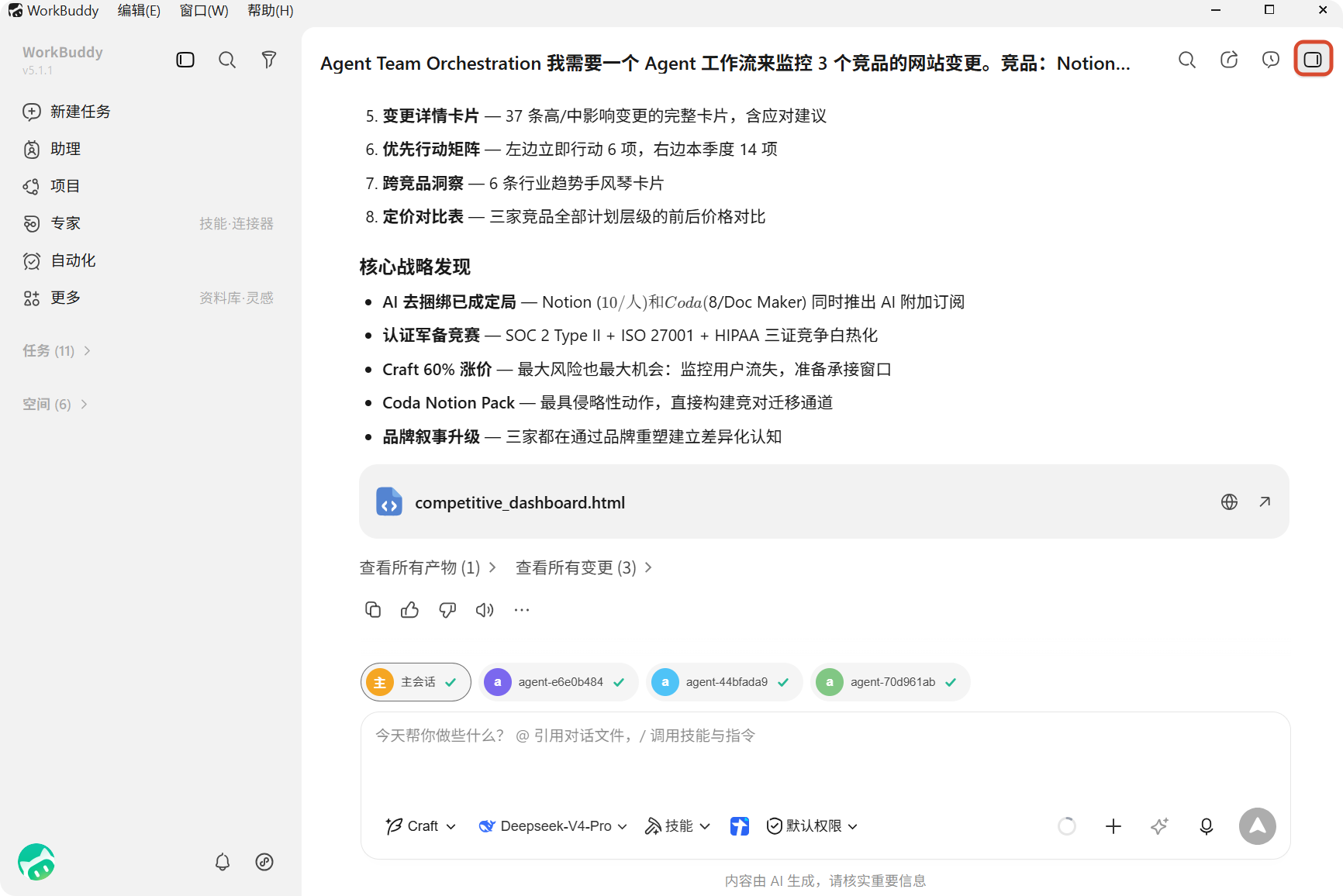
Look at the file card and View all artifacts. This screenshot is from a different official example; your file should be 活动清单.md.
- The venue is confirmed. Removing duplicate registrations is still a task, due Thursday.
- The poster is complete, but checking its headline must remain on the list.
- The check-in owner is undecided; the agent must not invent a person's name.
You can append: “Separate poster production from headline checking; revise only the checklist.”
Success check: the file passes your checks and the source notes remain unchanged.
5. Everyday use: choose the right mode
13. Distinguish discussion, planning and execution
- Select the plus icon to the left of the input box and open Modes.
- Choose according to the task; leave discussion-only mode when a file must be written.
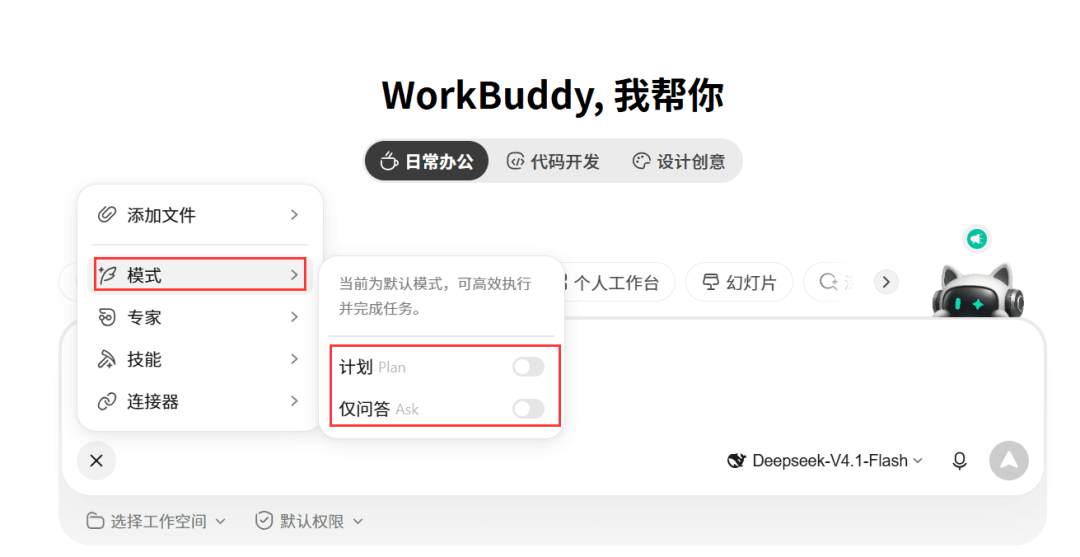
Look at the Plan and Ask switches. Turn them off to return to the default mode.
| Mode | What it is for |
|---|---|
| Ask | Understand materials and discuss ideas without performing file operations |
| Plan | Propose a plan before executing a multistep task after confirmation |
| Default Agent | Call tools and complete a task when its goal is clear |
Success check: asking a question does not change files, while a delivery task can execute. Continue in the same task when revising the same result; create a new task for a different subject.
14. Identify the material and request a focused revision
- Refer explicitly to
活动清单.mdin the same task; do not simply say “change it.” - Send: “Change only the To do section to a checkbox list. Keep all other sections and
活动笔记.txtunchanged.” - Open the artifact and compare it rather than relying on the completion message.
Success check: the checklist format changes while the other information stays the same. For a different event, start a new task and select its materials again so that old dates do not carry over.
6. Advanced use: split work into stages, then reuse the method
15. Use Plan for several source files
- Create
补充说明.txtcontaining: “Xiao Chen will check the poster headline; the check-in owner is still undecided.” - Enable Plan from the plus menu and send the instructions below.
Read 活动笔记.txt and 补充说明.txt, then propose a merge plan and list the details I need to confirm.
The goal is to create 活动清单-v2.md while preserving the old checklist and both source files.
Do not modify files yet.
- Check the plan: Xiao Chen is responsible only for checking the headline. Confirm before execution. If the task remains in planning-only mode, switch back to default Agent mode.
Success check: the new checklist includes the headline owner, check-in remains unassigned, and the old version is preserved.
16. Save your own organizing rules
Ask it to save these four lines as 清单规则.txt. For later materials, ask it to read the rules first.
Group items into Completed, To do and To confirm.
Split a sentence into separate entries when it contains multiple statuses.
Write "not stated" for names and deadlines absent from the source.
Create a new output file and preserve all input materials.
Success check: the format stays consistent when the material changes. This is a reference file that you explicitly invoke; putting it in the directory does not automatically activate it. “Complete by Thursday” belongs to this event and should not become a general rule.
17. Add skills when needed
- Read the descriptions in the skills interface and prioritize capabilities directly relevant to your file task.
- Check the source, read/write scope and any external-account requirements. Add one capability at a time.
- Try it on the practice materials and inspect the artifact. If it fails, return to the ordinary prompt that already works.
Success check: you can explain which step the skill helped with and inspect its output. Skills provide reusable methods; connectors provide access to external materials. You do not have to configure both at once.
18. Start repeat work with a local draft sample
- Complete two similar tasks manually first, establishing the input directory, output filename and checks.
- Then consider scheduling local drafts. State the run time and time zone, use new filenames and prohibit overwriting inputs or sending anything to others.
- Check the first run's record and file. If delivery does not match your instructions, disable the schedule, fix it and re-enable it.
Success check: repeated work produces files you can inspect, rather than unchecked outgoing messages. Runtime requirements are whatever the current scheduling interface specifies.
19. Verify with one small file of your own
- Copy a short note without sensitive information into the practice directory and name it
我的笔记.txt. - Ask: “Read only
我的笔记.txt, quote two sentences from it, then list the action items. Do not write a file this time.” - Open the source yourself, compare the quotes word for word and check that a read operation was actually recorded.
Success check: the quotes match the source exactly, nothing was invented and the source file was not modified. Only then try real work materials. Do not use API keys or account files as test input.
7. Quick troubleshooting
| Symptom | Check first |
|---|---|
| Sign-in succeeds but the client does not change | Return to the client and restart sign-in if needed |
| File not found | Workspace, filename and an accidentally doubled .txt extension |
| An answer appears but no file | Ask mode and whether saving was explicitly requested |
| Incorrect content | Quote the specific source passage and request a focused correction |
| 401 / model unavailable | Orbis key validity, bound route, model ID and balance |
| 404 / answers without reading files | Complete endpoint, Custom protocol switch, tool-calling option and route capabilities |
| The same step repeats | Stop the request and retry a smaller task |
References
Updated: 2026-10-22.
- Official: installation, first task, model setup, and modes and workspaces.
- Structural references: Axing AI Studio's ima tutorial and personal-workbench tutorial.