
Images 2.6 adds GIFs and more control over image edits
ChatGPT Images 2.6 adds GIFs, while the API gains markup-guided edits and SVG output. Official demos and early user feedback show how creators can keep working on the same image.
Images 2.6 starts by putting characters in motion
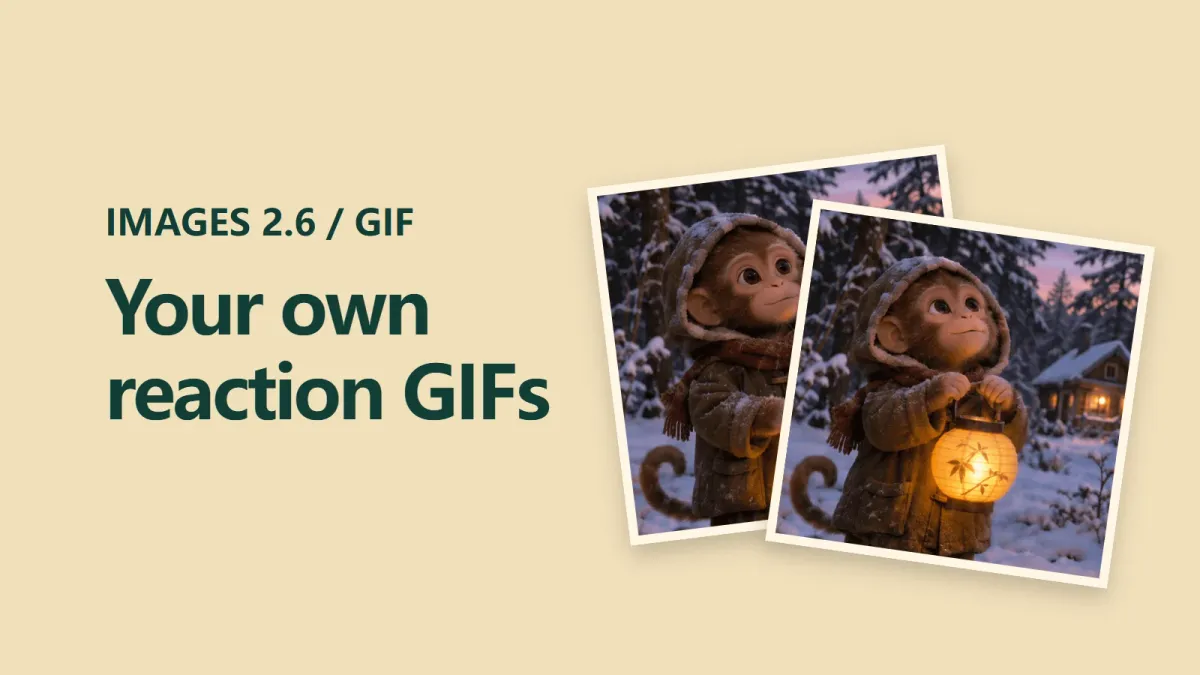
A little monkey lifts a lantern, blinks, then lowers it again. After 1.8 seconds, it returns to the starting point for another loop. This is an actual demo OpenAI released for Images 2.6: 9 frames, each lasting 200 milliseconds. It is a better fit for a chat emoji or a waiting animation than for having a character act out an entire scene in a long video.
Released on November 4, Images 2.6 brings GIFs to ChatGPT and adds markup-guided editing and SVG output to the API. For people who revise images repeatedly, these features are more compelling together: start with a character or scene, keep the parts that work, then revise it, animate it or pass it to the next stage of production.
The following draws on official demos, product documentation and early user discussions, with information current as of November 5, 2026.
Without writing code, you can start a conversation in ChatGPT on the web: upload a character image you have the right to use and ask for a GIF. Here is a sample prompt to try: “Have the character in the image raise a hand to wave. Keep the camera still, preserve the clothing and background, and return to the starting pose at the end to make a looping GIF.” The Verge reporter Emma Roth reported that you can also adjust the speed and view and edit individual frames after generation. Whether the feature is available in a particular client depends on its current version.
First, distinguish between the two ways in: use ChatGPT to try GIFs and mark up images; look to API support to integrate markup-guided edits into your own tools or output SVGs. Flare, Sunburst and complexity, discussed below, are API choices. Ordinary users do not need to learn API parameters first.
These small animations have specific uses. Hacker News user jawns said they wanted to make custom animated Slack emoji. Another example OpenAI showed came from the work assistant Town: a small character named Monty appears above the message box as a typing indicator. It is not telling a story, just giving the wait a small, recognizable action.
When trying this, keep the action limited: a blink, a nod or lifting an object, with a fixed camera and an ending that returns to the beginning. The more clearly defined the character’s appearance, clothing and background are, the easier it is to compare adjacent frames for changes. Packing an entire ad’s shots, copy and character performance into one loop quickly makes that comparison harder.
Short loops still face continuity problems. HN user minimaxir pointed out that assembling multiple frames into an animation is nothing new; keeping the frames consistent is the hard part. In their view, noise was still visible in the demo. A still frame may look good, but small changes in a collar, hand or background become more noticeable during playback.
When the vase changes, the kitchen should stay put
Small changes to a single image also have a more direct starting point.
The vase example in OpenAI’s documentation is easy to follow: circle a striped vase on the dining table in a kitchen photo, then ask to make it cobalt blue while preserving its shape, the bare branches and the surrounding kitchen, and remove the markup at the end. In the image below, the marked-up input is on the left and Flare’s result is on the right. The kitchen remains recognizable overall, but a closer look also reveals differences in the branches, the vase’s outline and the tabletop details. Circling the object makes the target clearer; the result still needs to be compared with the original.
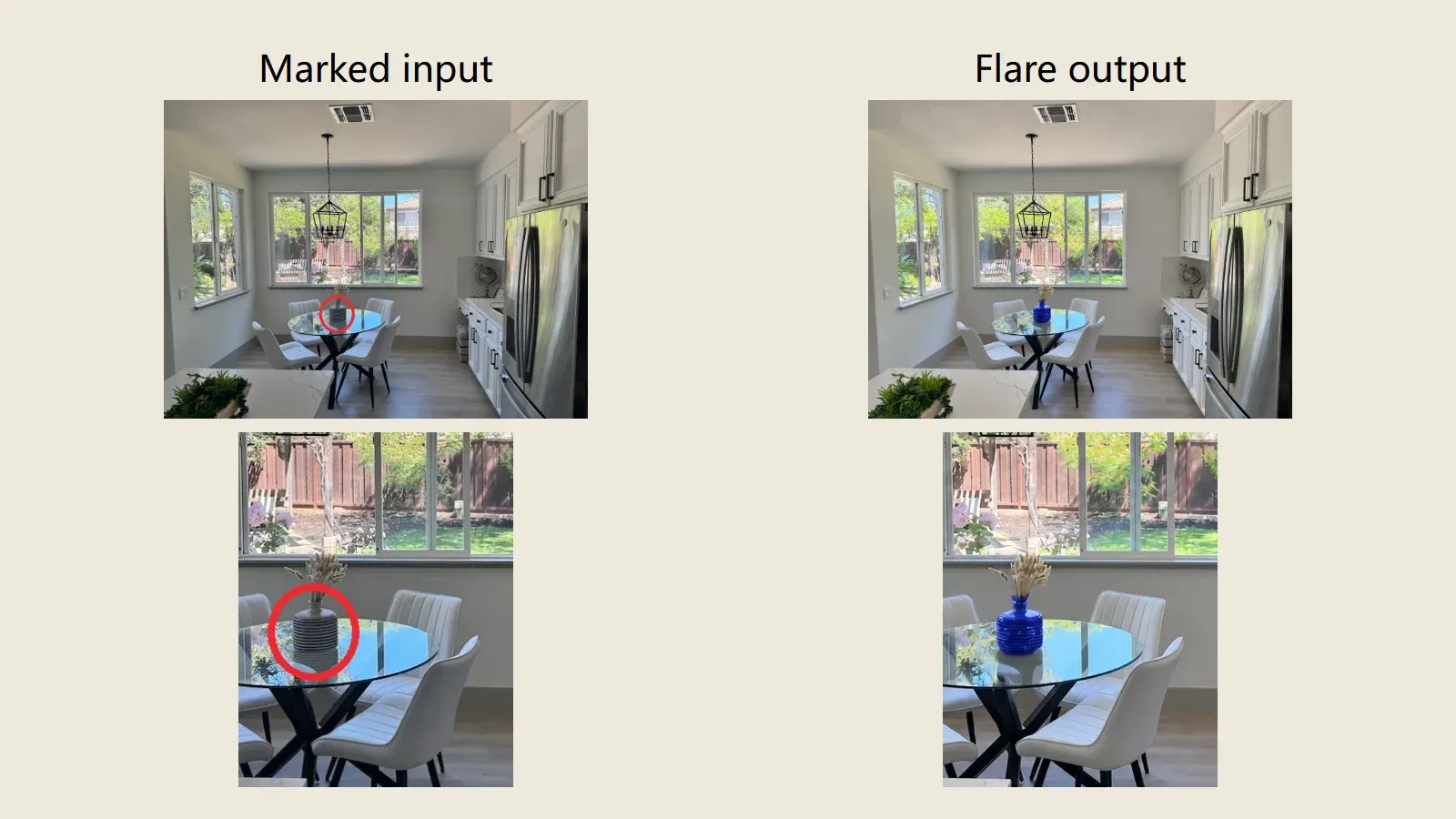
Anyone who has gone through several rounds of AI image editing will recognize the need. Most of the image already works; only a color, a line of text or a prop needs changing. Describing the location in words means explaining which object on the left, or whether it is in the foreground or background, then hoping everything else stays put. A circle puts “where” directly into the image, leaving the text to explain “what to change it to.”
Drawing a circle in ChatGPT makes the location request visual. Developers integrating the API submit the original image together with a separate transparent markup layer; the lines guide the edit and can be removed from the final image. According to the documentation, this API markup mechanism supports specified GPT Image 2.5 and 2.6 models. This release brings markup already available in ChatGPT to the API.
When writing an editing request, separate what should change from what should stay. If only the background of a product image needs replacing, also specify that the product’s shape, packaging text and angle should remain. If only a character’s gesture should change, preserve the clothing and composition. Precise positioning cannot replace these instructions.
Another addition is reusable reference images. The release post in the OpenAI community says you can save reference images of yourself, a pet or a character, without uploading them again for each subsequent creation. References establish the character; markup locates the current edit. They solve different problems. Our earlier guide to character consistency in AI-generated images also starts with organizing reference material. The new feature saves some steps, but the character still needs to be clearly defined.
Choose speed and planning separately
Images 2.6 continues to offer Flare and Sunburst. OpenAI positions Flare for fast generation and iteration, and Sunburst for more detailed work and precise edits. Neowin reporter Pradeep Viswanathan made the conditions for the shortest generation time clear: Flare can take as little as 6 seconds at low quality. Applying that figure to a high-quality poster or complex, multi-round edits would create the wrong expectations.
Before deciding which model to use, consider two separate choices. Quality determines rendering detail and fidelity; complexity determines how much effort the model spends planning the scene before drawing. They address two common requests: render an image in detail, and arrange many elements correctly within it.
The official documentation offers three complexity levels—low, medium and high—with high as the default. For narrowly targeted edits, such as replacing a background or changing a sign, however, OpenAI suggests considering low complexity first. High complexity can sometimes add latency or even introduce unwanted changes. Turning every setting up may not be the best way to preserve an image you already like.
If you are still comparing it with the previous generation, revisit our observations on GPT-Image-2.5. Developers can take one specific edit and compare low complexity with the default setting, checking whether the surrounding image changes before deciding between speed and more detail. In a chat interface, you can start by stating the goal and what to preserve, without studying parameters you cannot see.
SVG hands the result to the next editor
At delivery, GIFs, ordinary images and SVGs serve different purposes.
A GIF delivers a looping action; an ordinary image delivers fixed pixels; SVG describes graphics through paths, shapes and colors, making it suitable for icons and illustrations that need further editing. When a logo must work across a website, an app and print materials, editable paths and colors are more useful than exporting a few more pixel dimensions.
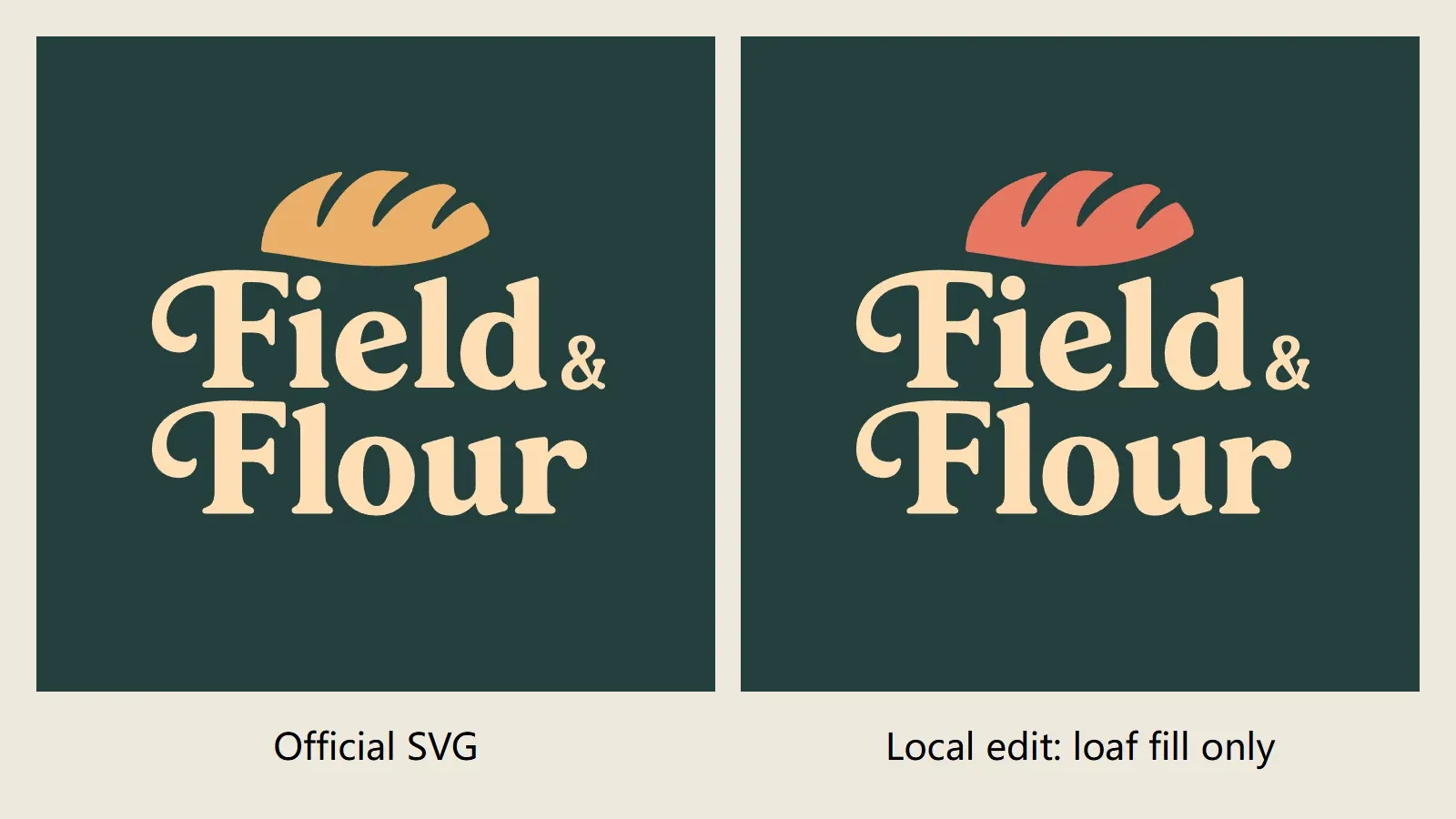
On the left above is the Flare bakery logo SVG provided by OpenAI. We copied this file and changed only the fill color of the paths for the bread to produce the result on the right: the bread changes color, while the wordmark below remains. We never asked the model to draw the image again. Both the original and recolored files can be opened in a browser.
This is a small, concrete example of what “further editing” means in a file. You can take the SVG into a vector editor to adjust paths, colors and layout. With only a PNG, the same color change would often require selecting the bread from the pixels first.
One detail of the generation process is easy to misunderstand. The documentation says the API first creates a reference image, then uses it to make the SVG; the output is static vector content. An editable format does not mean its graphics already meet your layout, typography and print requirements. Choosing SVG leaves room for later changes.
The creative interface and the API also need to be considered separately. ChatGPT lets users adjust GIF speed and individual frames. In the API, GIF and SVG output currently work with the image generation endpoint; the editing endpoint does not directly output either format. When connecting your tools, do not assume that every button in the chat interface maps directly to an API parameter.
New controls still need a final look
Discussion on release day was not uniformly positive. HN user neom posted a complex prompt involving clock gears, water refraction and reflections, arguing that the 2.6 result was worse than 2.0. Their individual example and the official short looping animation concern different challenges: the former requires many fine spatial relationships, while the latter needs a few actions to connect smoothly.
The delivery experience also affects how easily a creation can be used. User speak_plainly complained that sharing a GIF on mobile produced a ChatGPT link with a static preview, requiring them to save it to their photo library before sharing. Another user, dllu, said they still could not access GIF capabilities after updating Codex CLI. The former did not specify the full mobile version; the latter was discussing Codex CLI. Neither should be treated as the same entry point as ChatGPT on the web. Someone making emoji for a team cares about whether the animated file can ultimately reach the chat.
That makes small tasks with an existing starting point good candidates to try first: give an established character a short action, recolor one object in a photo you like, or deliver a logo draft as an editable file. Each change can be viewed alongside the original, making the rework saved easier to see.
The lantern goes up and comes back down. The loop is short. Giving a character you already have one small, shareable action is enough to begin.